Docs / Models
Choosing a model
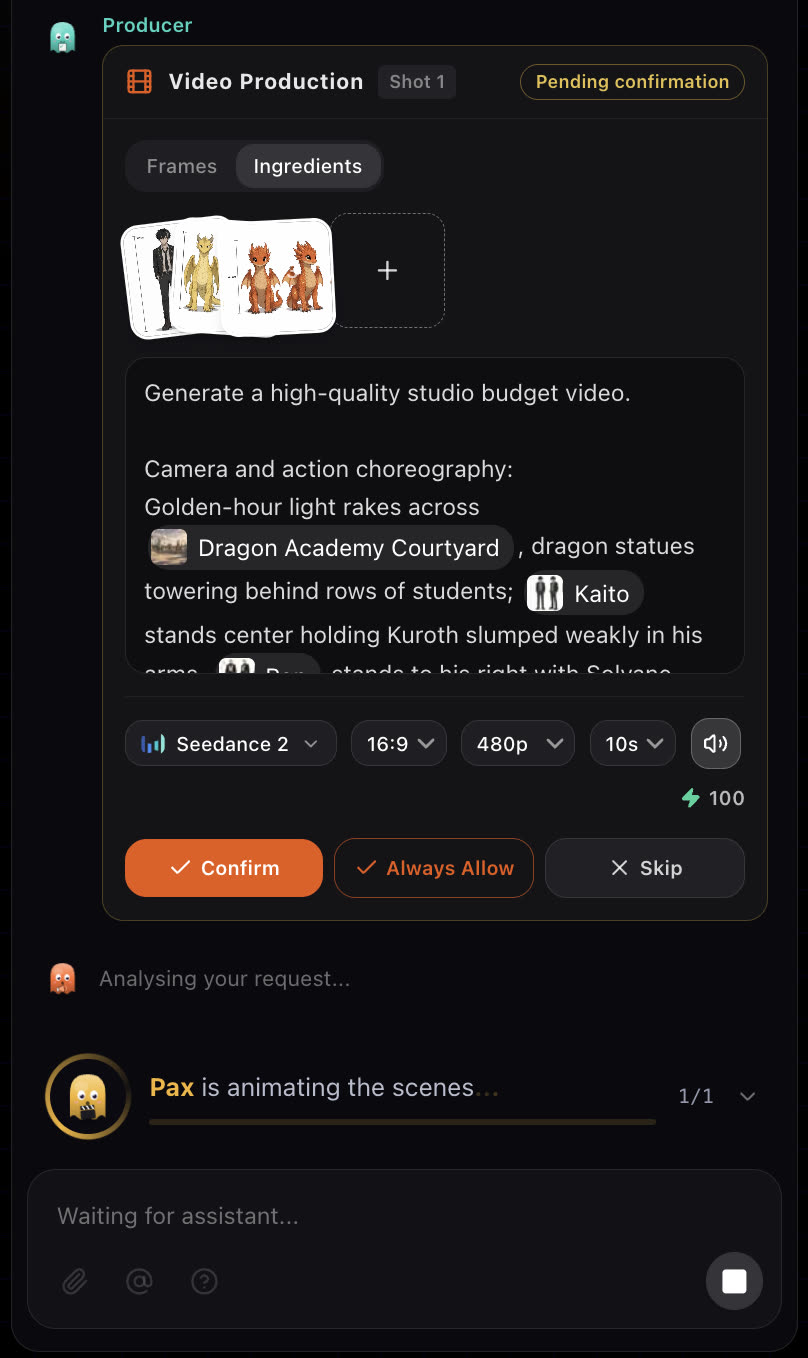
You rarely need to choose: the crew picks a model per shot. When you do, draft with a fast variant at low resolution and finish only the shots you keep with a full model at higher resolution.
Updated November 16, 2026
Before you start
Every model costs a different number of credits, and higher resolutions cost more. The studio shows the cost before a generation runs. See How credits work.
Draft, then finish
- 1
Draft fast and low
While the story is still changing, use a fast variant at a low resolution. You can afford to try a shot several times.
- 2
Lock what works
Once a scene is right, keep its prompt, references and duration.
- 3
Finish high
Render the shots you keep with a full model at a higher resolution, on the confirmation card or in Story settings.
What to weigh
- Cost
- Fast variants cost less and are the right draft tool; the full models are for the shots you keep.
- Resolution
- Resolutions run from 480p drafts up to 4K, depending on the model. Video reaches 4K on Seedance 2.0, Veo 3.1 and Veo 3.1 Fast, Kling 3.0, Kling o3, Vidu Q4 and MiniMax H3; stills go up to 4K.
- References
- Some video models take reference images, videos or audio to guide the shot. See Video references.
- Audio
- Some video models can carry their own audio track. Turn it on or off with the Audio row in Story settings.
Free and paid models
- On a free account, video renders at 480p.
- Some models, such as Seedance 2 and Seedance 2.5, are for paid plans and show a lock on a free account.
- Any paid plan unlocks higher resolutions and the paid-only models. See Plans and top-ups.
If something looks wrong
- A model shows a lock. It is for paid plans only. Pick another model, or upgrade.
- You cannot pick a higher resolution. Free accounts render video at 480p. Higher resolutions unlock on any paid plan.
- Credits run out fast. Draft with a fast variant at a lower resolution, and save the full models for final shots.
Next
Was this page helpful?