Docs / Story & cast
Story settings
Story settings are set per story from the storyboard. Defaults are sensible; change them when the brief needs it.
Updated November 16, 2026
Before you start
Settle the aspect ratio and the language first. Both shape the screenplay, the framing of every image and the voices, so they are cheapest to get right before the crew starts shooting.
Open the settings
- 1
Open the storyboard
Open your story and switch to the Storyboard tab.
- 2
Open Story settings
Open the settings panel from the storyboard toolbar.
- 3
Change what the brief needs
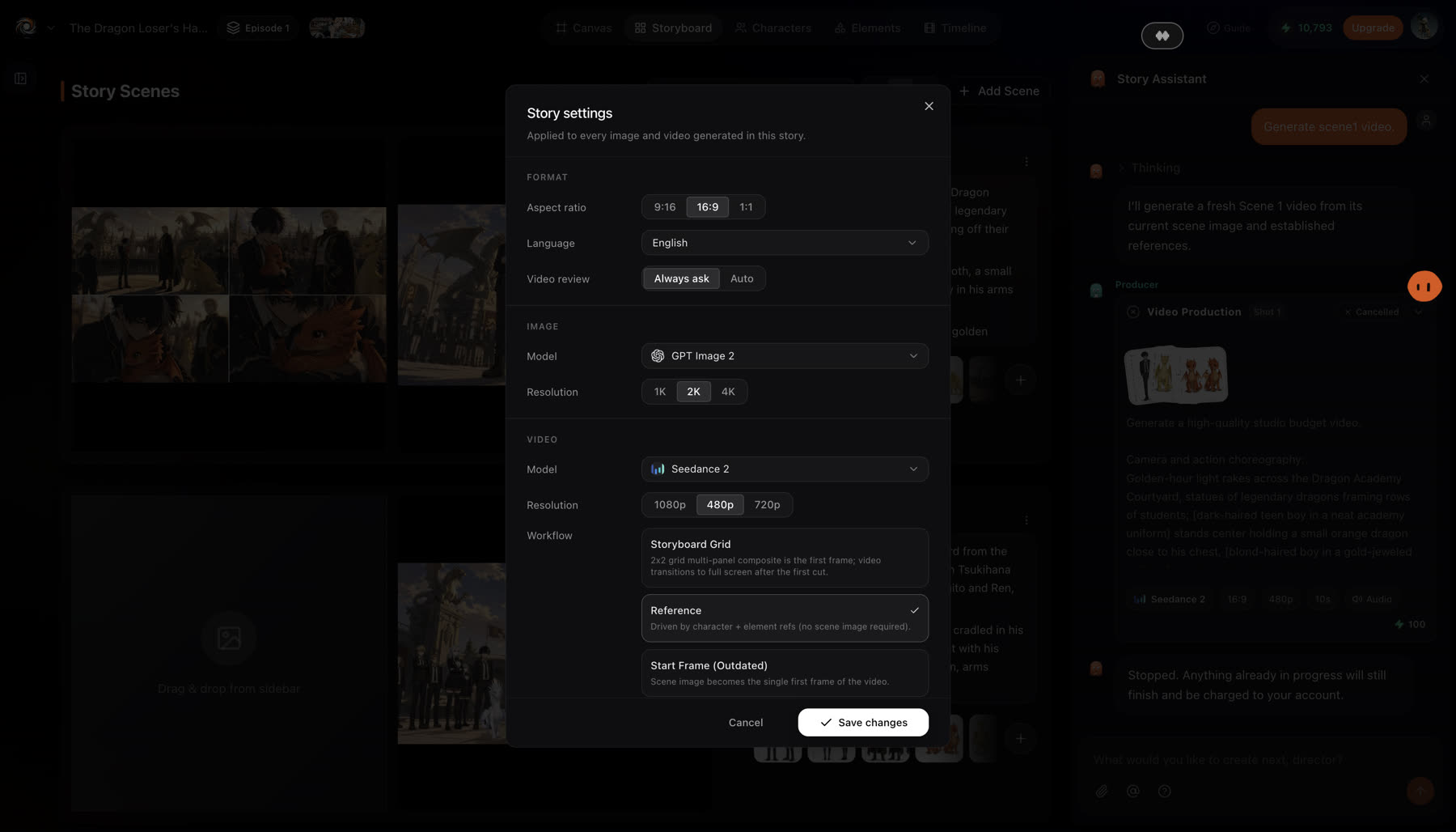
Pick a value for each row you want to change, then save. The crew uses the new values from the next generation on.
Settings
- Aspect ratio
- 9:16 portrait, 16:9 landscape or 1:1 square. Set once per story; individual shots can be resized later.
- Language
- English, Hindi, Spanish, French, German, Italian, Japanese, Korean, Chinese, Portuguese, Indonesian, Malay, Thai, Vietnamese or Arabic. Dialogue and voices follow it.
- Video review
- Always ask: every video waits for a confirmation card where you can edit the prompt, duration, resolution and references. Auto: videos render as soon as the image is approved.
- Image
- The image model and resolution the art director uses for scene images.
- Video
- The video model and resolution the animation director uses. Draft low, finish high.
- Workflow
- Storyboard grid: a 2×2 multi-panel composite is the first frame and the video goes full screen after the first cut. Reference: shots are driven by character and element references, no scene image needed.
- Audio
- Whether generated video carries its own audio track.
Best practices
- Pick the ratio for where the video will live. 9:16 for Reels, Shorts and TikTok, 16:9 for YouTube and the web, 1:1 for a feed.
- Keep Video review on Always ask for a new story. You see the prompt, duration and resolution of every video before it spends credits.
- Draft low, finish high. Use a lower video resolution while the story is still changing, then raise it for the shots you keep. See Choosing a model.
- Use the Reference workflow when the cast carries the shot. Shots are built from character and element references, so you skip the scene image.
If something looks wrong
- A video rendered before you could check it. Video review is set to Auto. Switch it to Always ask and later videos wait for your confirmation.
- Dialogue is in the wrong language. Check the Language row, then ask the crew to redo the lines for the scenes that are off.
- Shots look cropped for the platform. The story ratio does not match where you post. Resize the shots you need, or start the story again in the right ratio.
Next
Was this page helpful?