Docs / Video
Videos and the confirmation card
Each scene's video is made from your characters and elements. With Video review set to Always ask, a confirmation card shows every setting before anything renders, so you only pay for the takes you mean to make.
Updated November 16, 2026
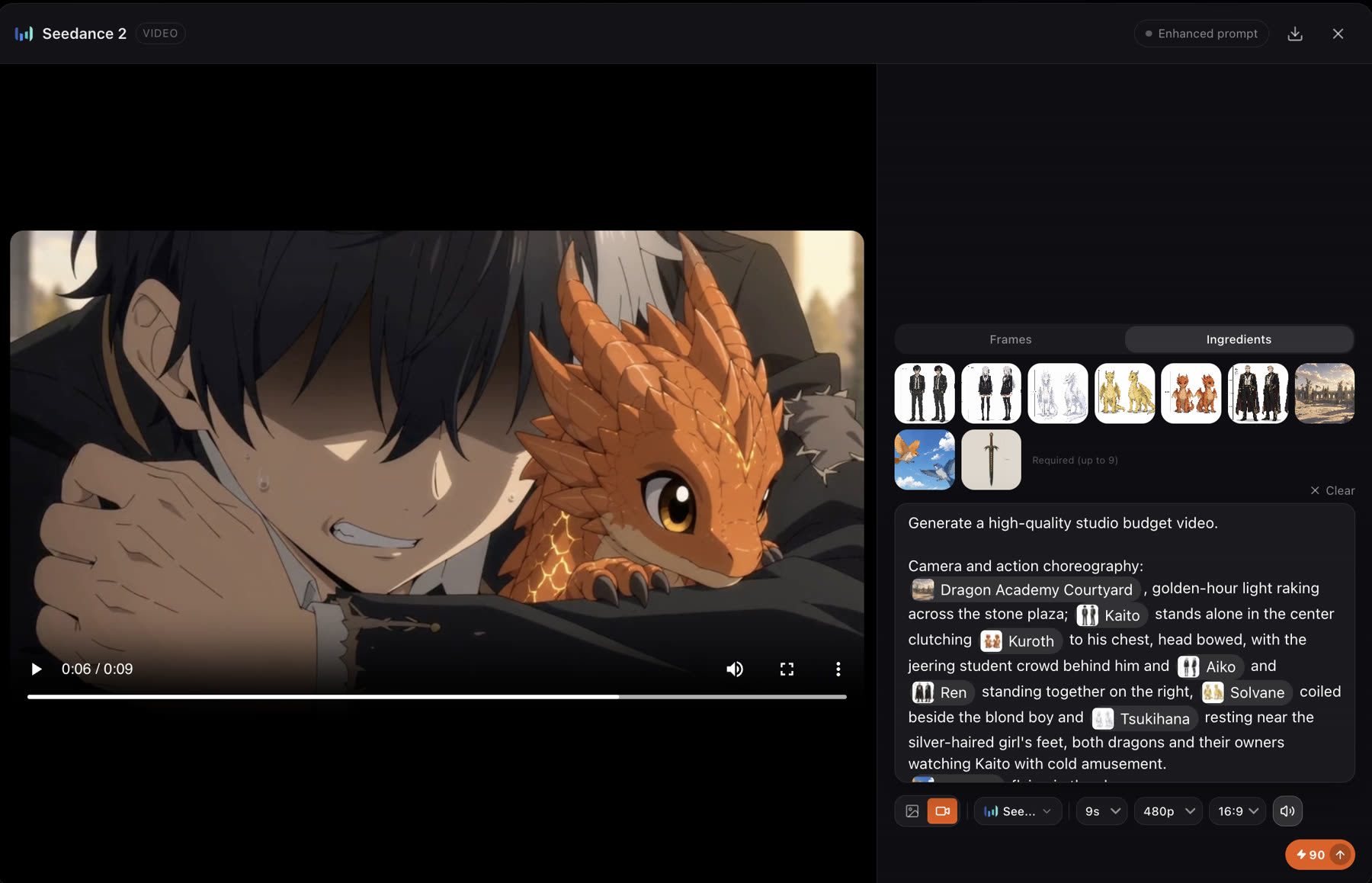
Before you start
Approve the screenplay and the cast first. Then choose how much control you want with Video review in Story settings.
- Always ask
- Every video waits for a confirmation card where you can edit the prompt, duration, resolution and references.
- Auto
- Videos render straight away, without a confirmation card.
Steps
- 1
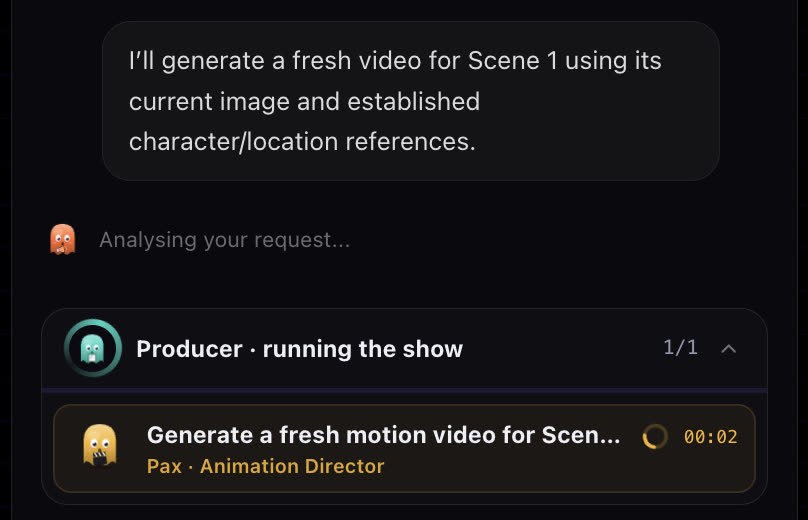
Ask for the videos
In the chat, ask for the video of one scene ("generate scene 1 video") or all scenes. The Producer batches the work so steps run in parallel.
- 2
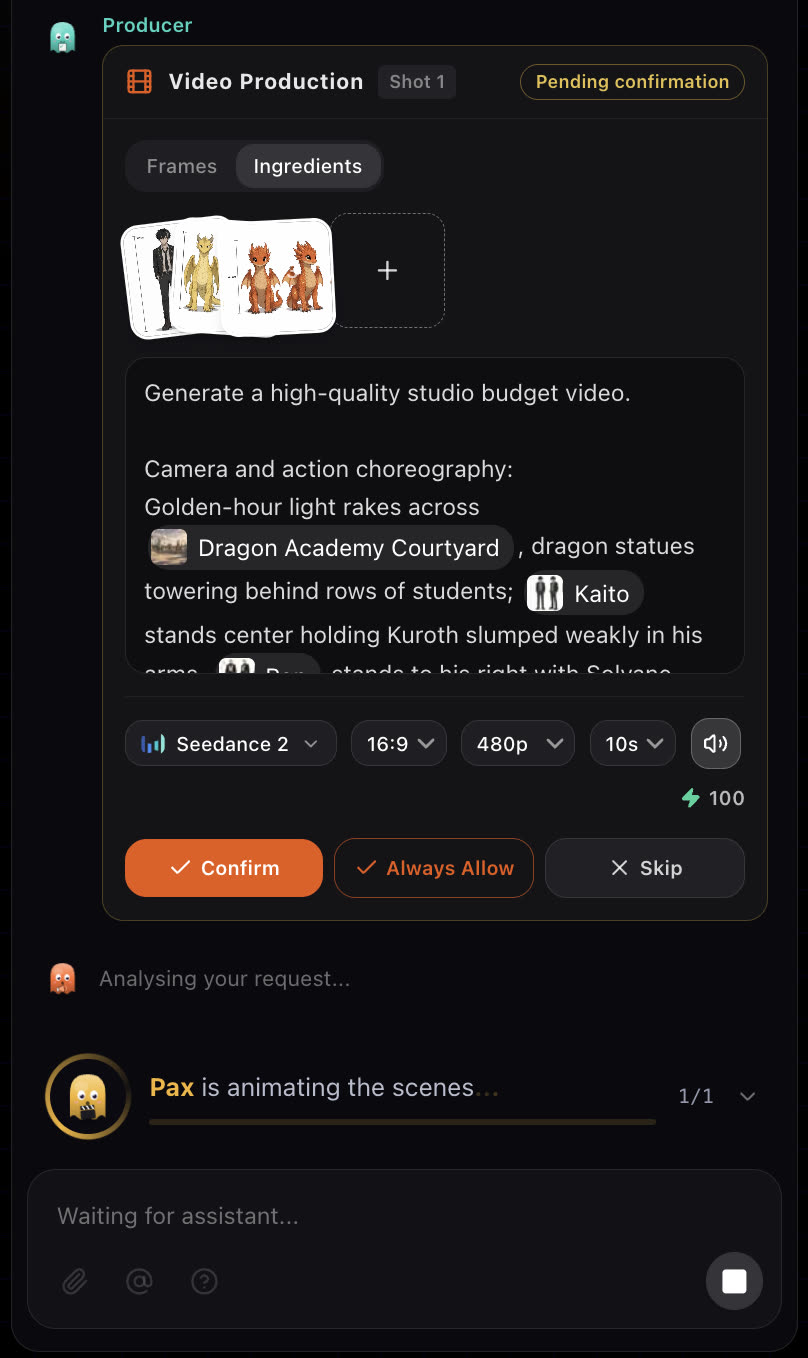
Read the confirmation card
The card shows the motion prompt, the aspect ratio, the duration, the resolution and the references. All of them are editable.
- 3
Confirm, skip or allow
Confirm renders the take. Skip passes on it for now. Always Allow tells the crew it can go ahead without stopping to ask each time.
- 4
Watch the take
Pax, the Animation Director, turns the scene into motion: camera, performance and timing. Scene videos land on their cards and in the timeline.
- 5
Regenerate what is off
Open the scene video to see its prompt and references, change what you need, and render it again.
Settings on the card
- Motion prompt
- What moves and how: the action, the camera and the timing. The crew writes it from the screenplay; edit it freely. Type
@to reference a character, element or asset by name. - Model
- The video model for this take. The default comes from Story settings. See Choosing a model.
- Resolution
- Draft low, finish high. Free accounts render at 480p.
- Duration
- The length of the take in seconds. Video is charged per second.
- Aspect ratio
- Follows the story by default.
- References
- The images, and on models that accept them videos and audio, that guide the take. See Video references.
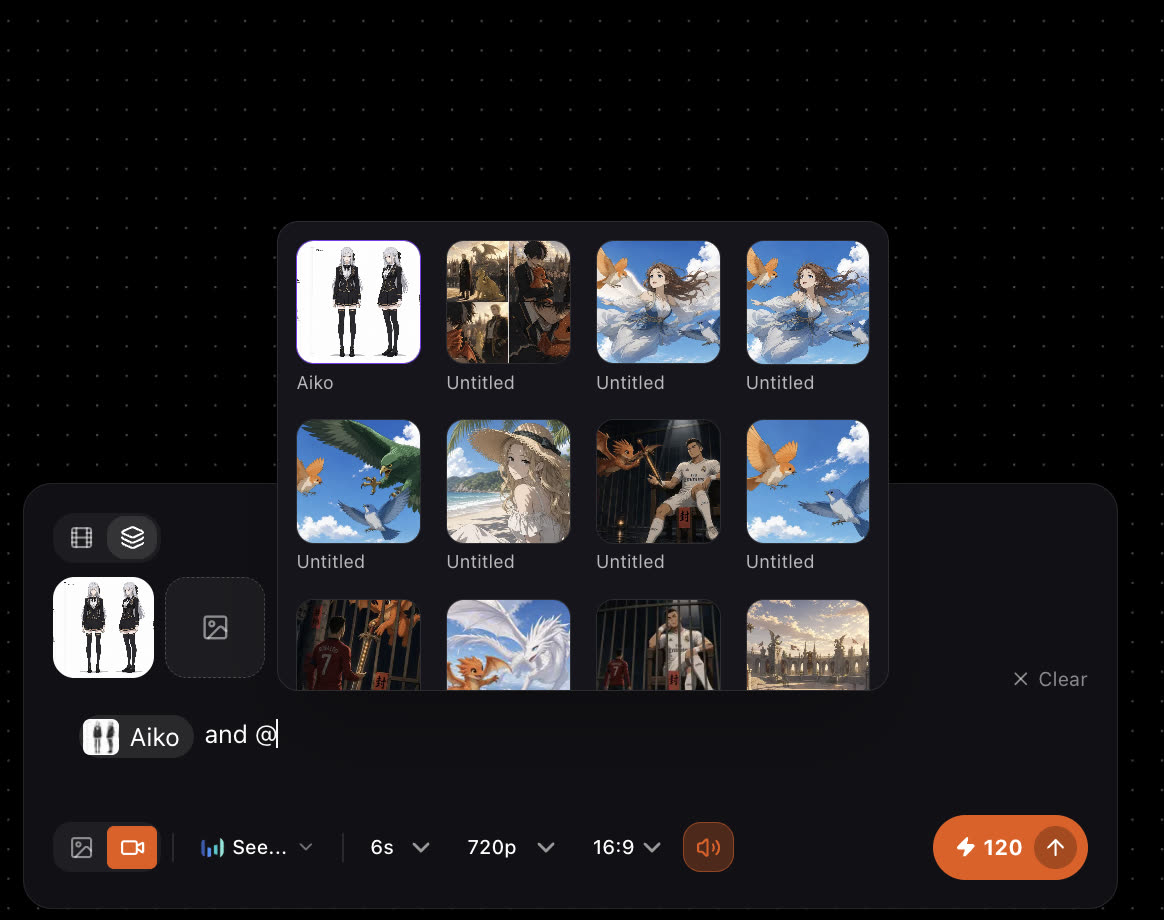
@ in a prompt to pull a character or an asset into the take.What a take can look like
Best practices
One clear action per take. A short shot with one movement looks better than a long shot that tries to do everything.
Weak
Kaito fights the dragon, then runs away, then talks to Aiko while the camera spins.
Better
Slow push in on Kaito as he raises his hand; the baby dragon lands on his wrist. Warm evening light, quiet mood.
Name one action, one camera move and the mood. Split a longer beat into two scenes.
- Draft at a low resolution and a short duration. Finish only the takes you keep.
- If your story uses the Storyboard grid workflow, keep the first frame strong: the video starts from the approved scene image, so fix the frame before the motion.
- Change one thing per retry: the prompt, the model or the duration.
Review the result
- The action is the one you asked for, and it reads clearly at phone size.
- The cast stays on-model through the whole take.
- The cut works with the scenes before and after it. Play the timeline to check.
If something looks wrong
- The motion is not what you asked for. Shorten the prompt to one action and one camera move, then regenerate. Or guide it with a reference video; see Video references.
- The face changes during the take. Check that the character is linked to the scene, so their sheet is on the card as a reference, then regenerate.
- No card appeared. Video review may be set to Auto, which renders without asking. Check Story settings.
- The video did not start. You may be short of credits. The crew stops and tells you instead of failing halfway.
Next
Was this page helpful?