Docs / MCP
Connect an AI app
Animeblip runs as an MCP server, so Claude or any agent that speaks the Model Context Protocol can drive the studio without a browser in the loop. Same crew, same locked style, same credits.
Updated November 16, 2026
What you can do
Once connected, your AI app can start a story, send the crew a brief or a full script, follow progress, upload images and video, pick an art style, make speech, and fetch the finished video. Everything it makes lands in your Animeblip account.
Apps you can connect
- Claude
- Claude Code
- ChatGPT
- Codex
- Gemini
- Grok
- Meta Muse
- OpenClaw
- Munder Difflin
- OpenAI dots
- Any MCP client that takes a URL
Any app that can add a remote MCP server by URL, or with an Authorization: Bearer header, uses the same connector.
Before you start
You need an Animeblip account with credits, and an AI app that supports remote MCP servers. Work your agent does spends your credits, exactly as if you had asked in the chat.
Steps
- 1
Create a key
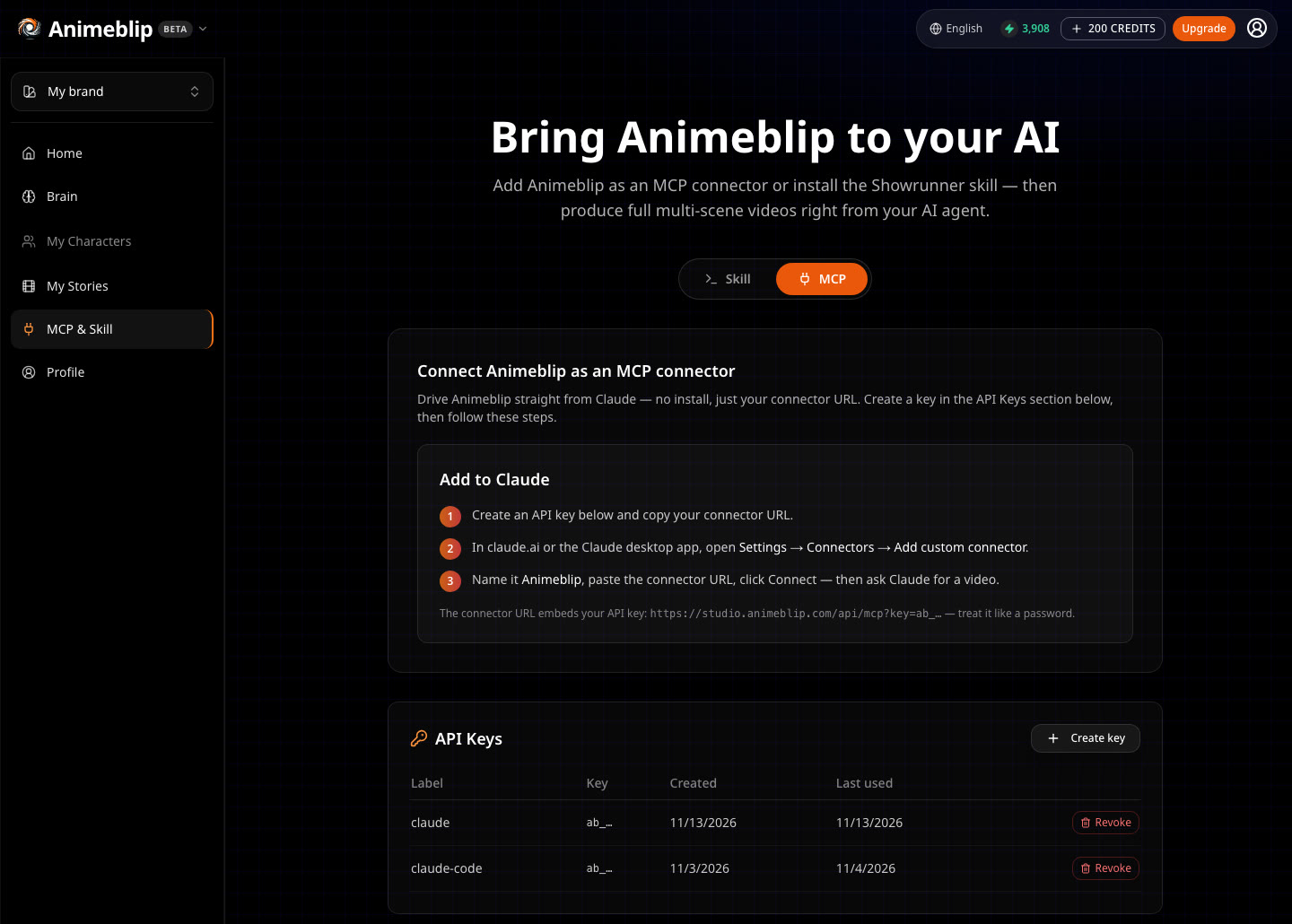
Open the MCP page in the studio sidebar and create an API key. It starts with
ab_and is shown once, so copy it right away. The page also gives you your connector URL.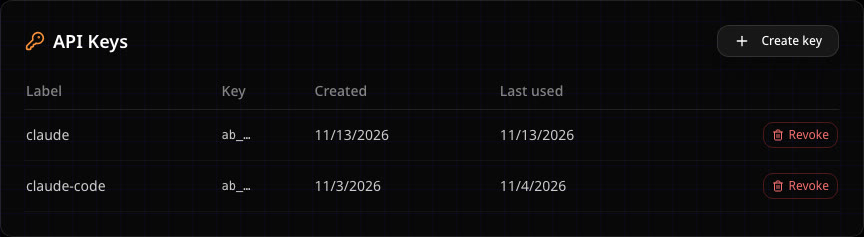
- 2
Connect your app
Add Animeblip as a remote MCP server using the connector URL. Exact steps for claude.ai and Claude Code are on Claude and Claude Code setup. For any other app, add a remote MCP server with this URL.
- 3
Give it a brief
A story idea or a full script. The agent runs it through the crew exactly as you would in the chat.
- 4
Watch it come together
Stories made through MCP approve video generation automatically, so the agent can run from brief to final video. Everything the agent makes is in your account, where you can review and change it in the studio.
https://studio.animeblip.com/api/mcp?key=ab_...Replace ab_... with your key. If your app has a field for headers, you can leave the key out of the URL and send it as Authorization: Bearer ab_... instead.
If something looks wrong
- Your app says it cannot connect. Check that the whole URL was pasted, including
?key=and your full key. If you lost the key, revoke it on the MCP page in the studio sidebar and create a new one. - The agent stops partway. You may be out of credits. Generation does not start when credits are short. See How credits work.
- You cannot find what the agent made. Open the studio with the same account the key belongs to. Every story the agent creates is listed in your projects.
Next
Was this page helpful?