Docs / Video
Freeform generator
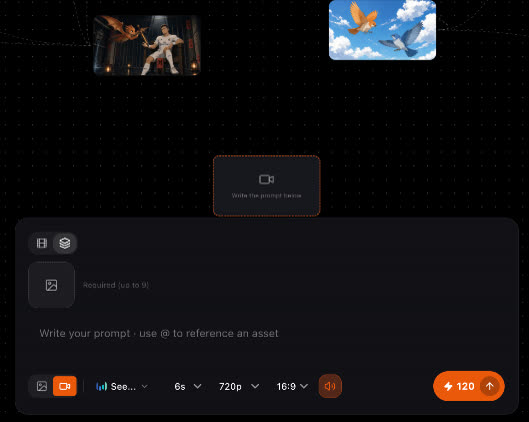
The generator in the assets panel makes images and video outside any scene. Use it to test a look, try a model or make an insert shot, then drag the result onto a scene or into the prompt box.
Updated November 16, 2026
Before you start
The generator is for one-off shots. A scene's video comes from the crew; see Videos. Anything you make here lands in Assets, with everything generated or uploaded.
Steps
- 1
Open the generator
Open the Assets panel and choose image or video.
- 2
Write the prompt
Describe the shot. Type
@to reference a character, element or asset by name.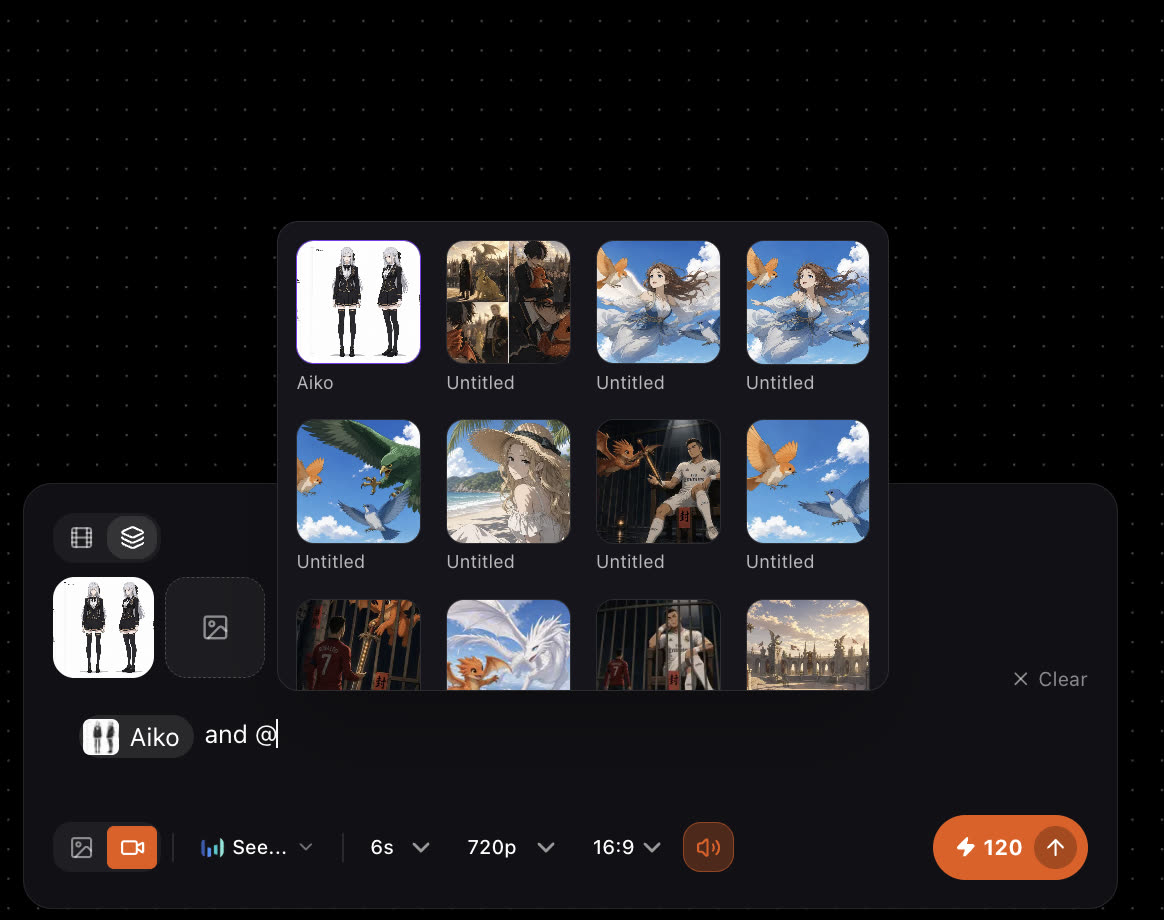
- 3
Set the options
Pick the model, references, duration, resolution, aspect ratio and audio.
- 4
Generate
The cost is shown before the generation runs. The result lands in Assets.
- 5
Use it
Drag the result onto a scene, or into the prompt box as a reference for the next generation.
Settings
- Model
- Any image or video model in the picker. Fast variants cost less and are the right draft tool; the full models are for the shots you keep.
- References
- Images, and on models that accept them videos and audio. See Video references.
- Duration
- Video only. The length in seconds; video is charged per second.
- Resolution
- Draft low, finish high.
- Aspect ratio
- 9:16, 16:9 or 1:1.
- Audio
- Whether the generated video carries its own audio track.
- Frames to video
- Give it a first and last frame and it inbetweens the motion between them.
Best practices
Weak
Cool dragon shot.
Better
@Solvane, the golden dragon, lands on the academy wall at dawn. Wide shot, slow tilt up, mist below. 16:9.
Reference the character by name so the generator uses its sheet, and give the framing and the light.
- Try a new model here on one shot before you switch the whole story to it.
- Make insert shots (a close-up of a hand, a sign, a prop) here and drag them into the scene that needs them.
- Keep good results. Everything you generate stays in Assets, ready to drag in when a scene needs it.
If something looks wrong
- The character looks generic. Reference the character with
@instead of describing it, so the generator uses the locked sheet. - An option is missing. Options follow the model. Pick another model to see its durations, resolutions and reference types.
- The generate button does nothing. Check your credit balance. Generation stops before it starts when credits are short.
Next
Was this page helpful?