Docs / Audio
Audio and music
Dialogue and sound come with each scene video. For extra audio, ask the agent or generate it yourself. Music from the agent becomes the story's background music and plays under the final cut.
Updated November 16, 2026
Dialogue and sound in scene videos
Each scene video can carry its own dialogue and sound. Turn this on or off with Audio in Story settings. Characters speak in the voices set on their cards; see Character voices.
Generate audio
There are two ways to get extra audio, such as a line for one of your characters.
Ask the agent. Say what you need in the chat, for example "Make a 10 second line for Kai in a calm male voice."
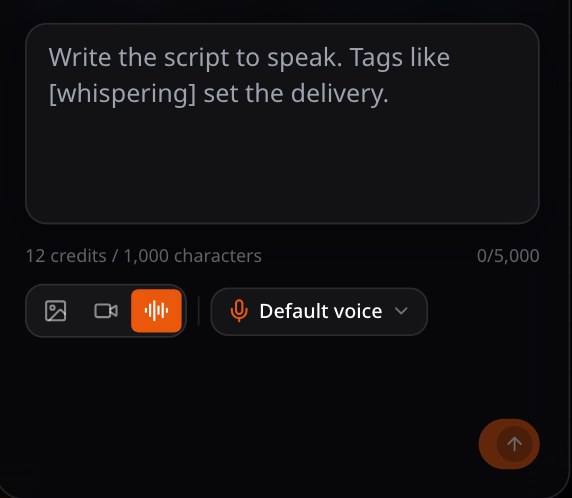
Generate it yourself in the sidebar's Create panel:
- 1
Open Audio
In the sidebar's Create panel, choose Audio. On the canvas you can also right-click and choose Generate audio here.
- 2
Write the script
Type what should be said. Tags like [whispering] set the delivery.
- 3
Pick a voice
Open the voice picker and choose a voice.
- 4
Generate
Choose Generate. The audio lands in the sidebar assets, and you can drag it onto the canvas.
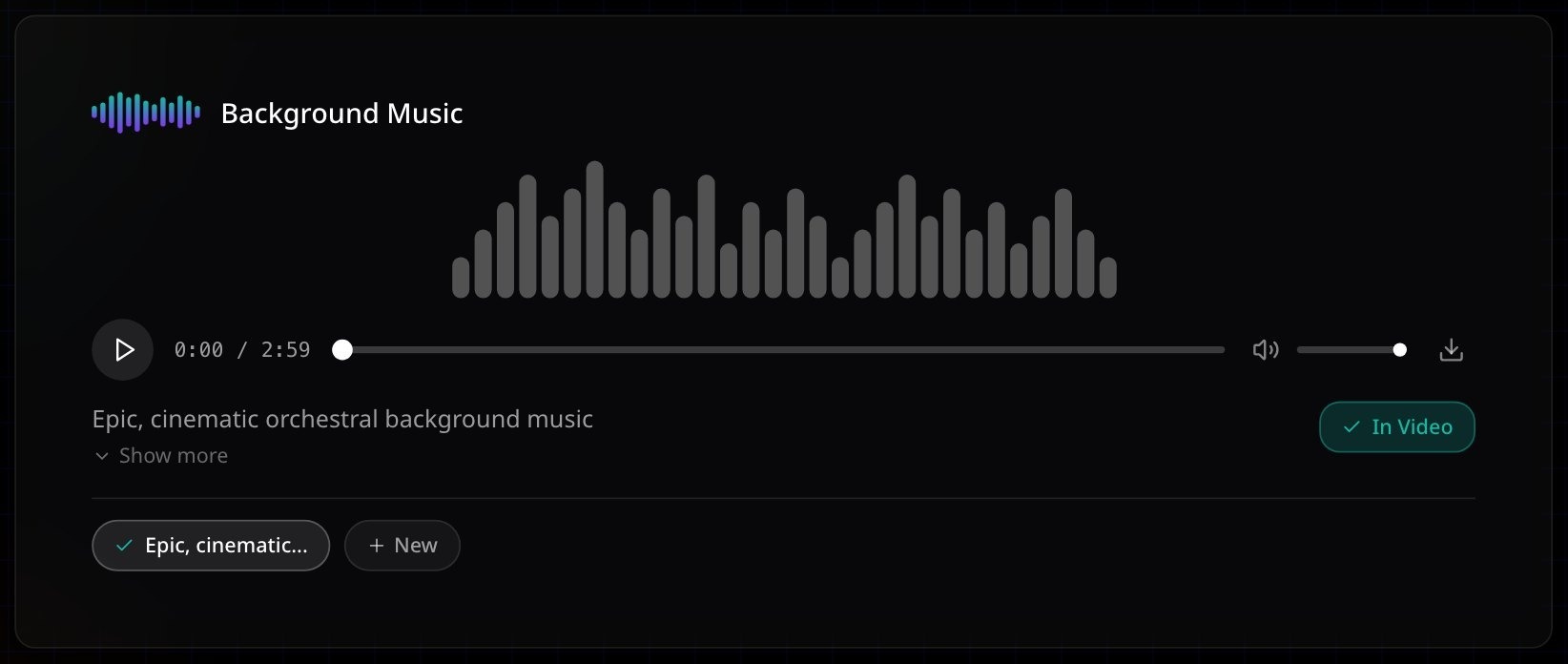
Background music
Ask for it in plain words: the mood, the tempo and the instruments.
Weak
Add music.
Better
Add soft piano that builds to strings: calm at first, hopeful at the end.
The mood, the instruments and how it builds give the agent something to aim for.
Where it lands
Generated music is set automatically as the story's background music and plays under the final cut. You can replace it at any time.
If something looks wrong
- The scene video has no sound. Check that Audio is on in Story settings, then regenerate the scene.
- The audio uses the wrong voice. Pick the voice in the voice picker, or name the voice when you ask the agent.
Next
Was this page helpful?