Docs / Getting started
Canvas
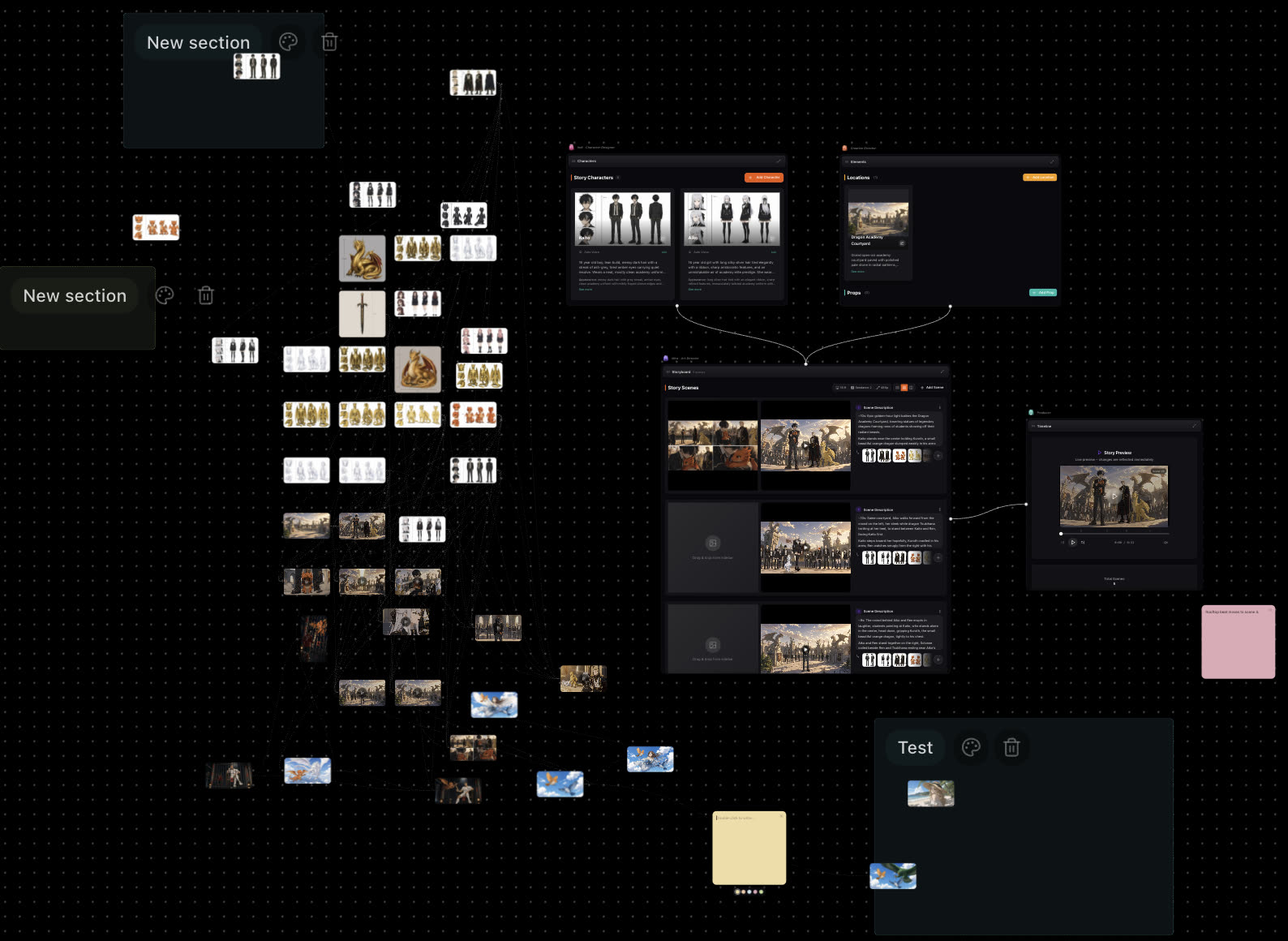
The canvas is an infinite board with the whole story on it. Group work into sections, leave notes, see what each asset was made from, and drop images and videos straight into scenes.
Updated November 16, 2026
Find your way around
The board's fixed boxes, Characters, Elements, Storyboard and Timeline, hold the story itself. Everything you generate or upload sits around them as tiles.
- Pointer
- Click and move things.
- Hand
- Drag to move the board.
- Zoom
- Use + and − in the corner, or Fit the board on screen to see everything at once.
Notes and sections
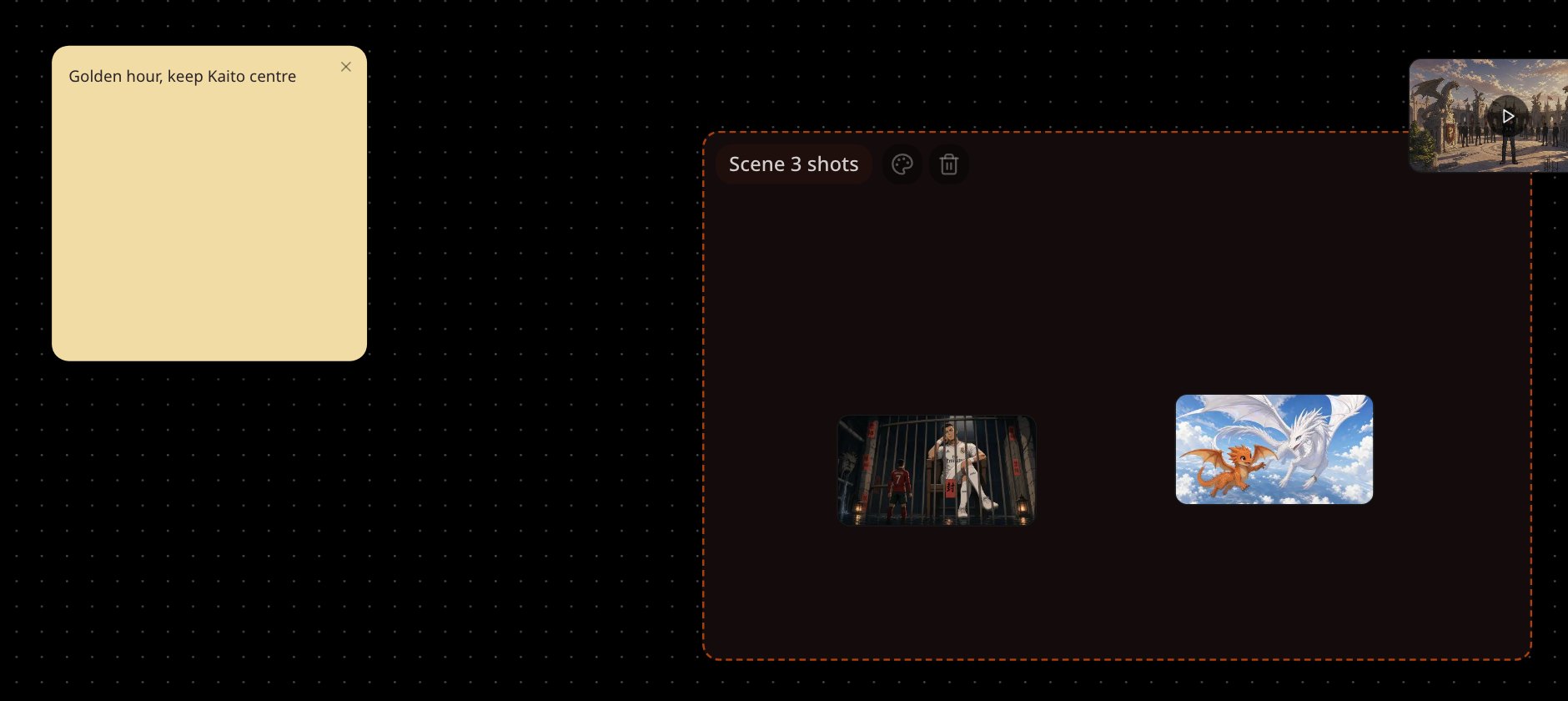
Choose Write a text note in the toolbar, or right-click the board and choose Write a text note here. Notes come in 5 colours: use them for ideas, shot lists or reminders next to the work.
To group tiles, pick the Section tool and drag out an area, or right-click and choose Add a section here. Double-click the name to rename it and change its colour. Move a section and everything inside it moves too.
See how assets connect
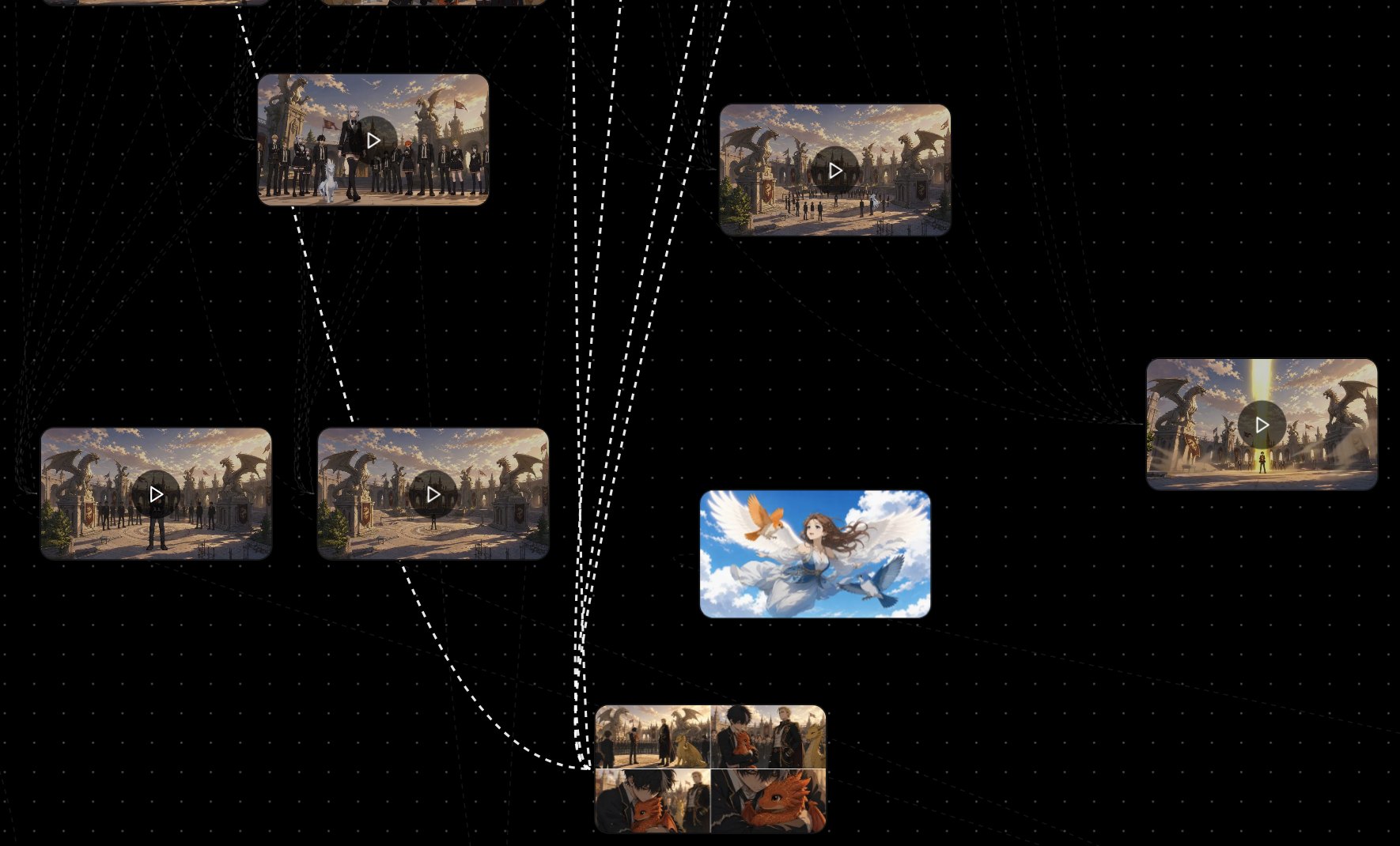
Turn on Show asset connections in the toolbar; it is off by default. Select a tile and its links light up: what it was made from, and what was made from it.
Drop assets into scenes
Drag any image or video tile onto a scene's image or video slot to replace it. Images go into image slots, videos into video slots.
Change an image or send it to the chat
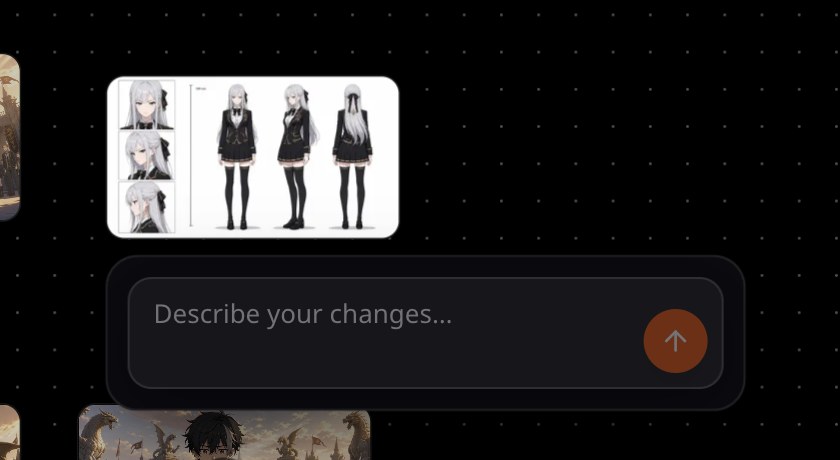
Select images to attach them to the chat. Select one image and a box opens: type what to change in Describe your changes… and choose Send this change to the director.
If something looks wrong
- You cannot find a tile. Choose Fit the board on screen to see the whole board.
- No lines appear between tiles. Turn on Show asset connections, then select a tile.
- A tile will not drop into a slot. Images go into image slots and videos into video slots.
Next
Was this page helpful?