Docs / Story & cast
Storyboard
The Storyboard tab shows the story scene by scene. Each card holds the scene's image, its video, its description and the characters and elements in it.
Updated November 16, 2026
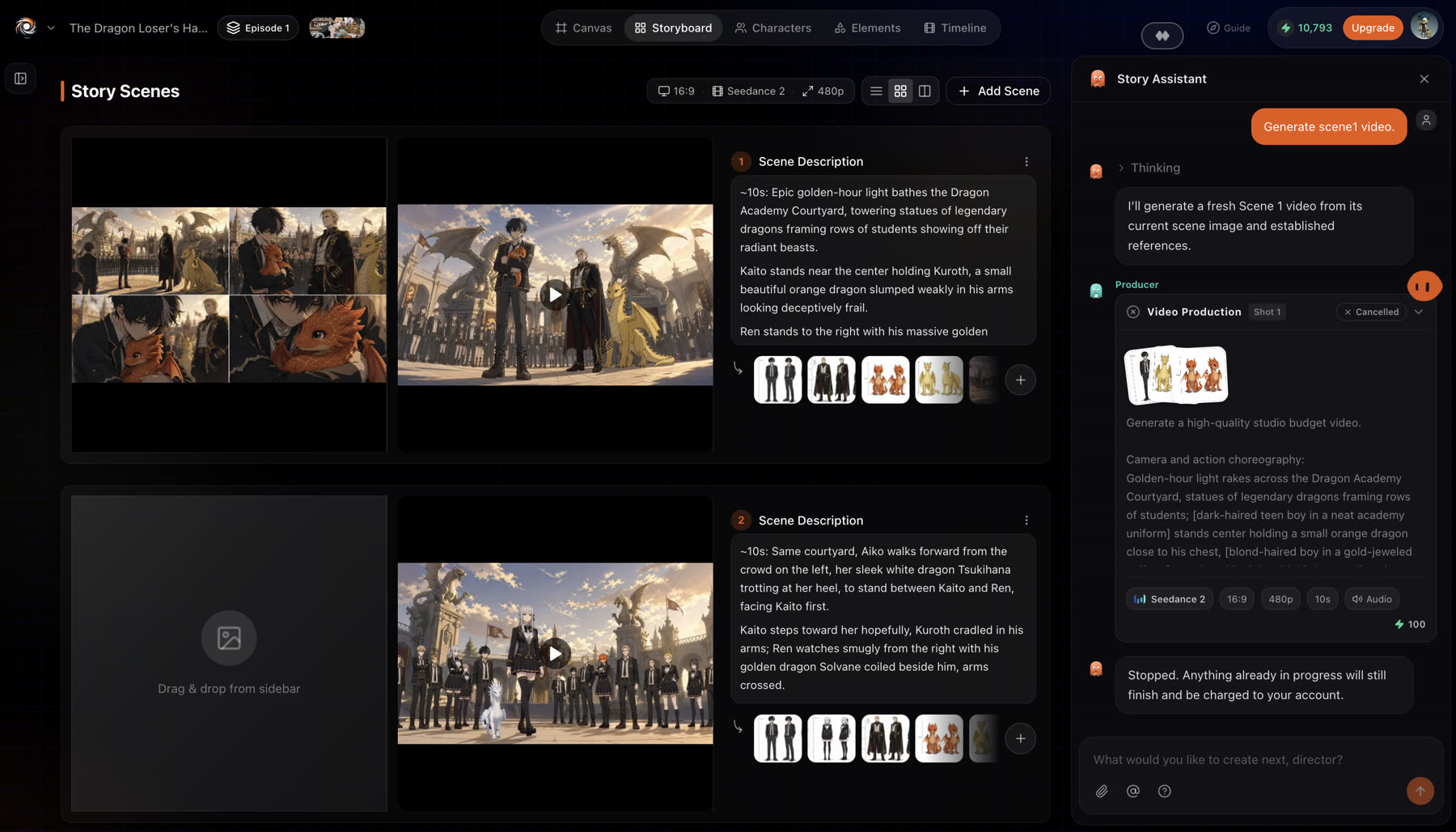
What is on a scene card
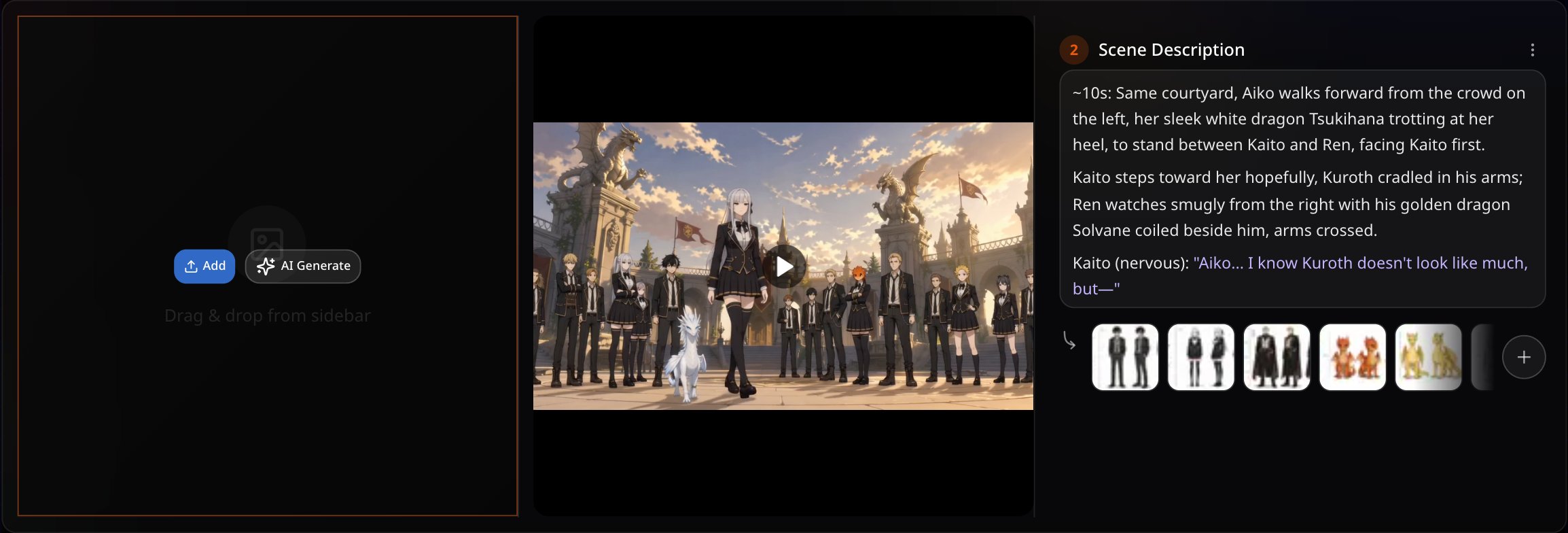
- Image slot
- Add scene image to upload one, AI Generate to make one, or Quote to bring it into the chat.
- Video slot
- Upload motion video, AI Generate, or Quote.
- Scene Description
- What happens in the scene. Click it to edit.
- Characters and elements
- The chips show who and what is linked to the scene. Linked characters and elements go to the model as references.
- Scene options
- Move the scene up or down, or delete it.
Drop in assets
Drag an image or a video from the sidebar onto a slot to use it in that scene.
Ask for a change with Quote
Quote puts that image or video into the chat. Then say what to change, such as "make it night" or "slow the camera down".
If something looks wrong
- The scene uses the wrong character. Check the chips on the card and link the right character to the scene.
- The image slot is empty. In the Reference workflow that is expected. To add one, choose Add scene image or AI Generate.
Next
Was this page helpful?