Docs / Getting started
Templates and presets
A template opens a new story with ready characters and an art style, and you write the story. A preset is a ready video recipe that you run from Claude or ChatGPT with the Animeblip MCP.
Updated November 16, 2026
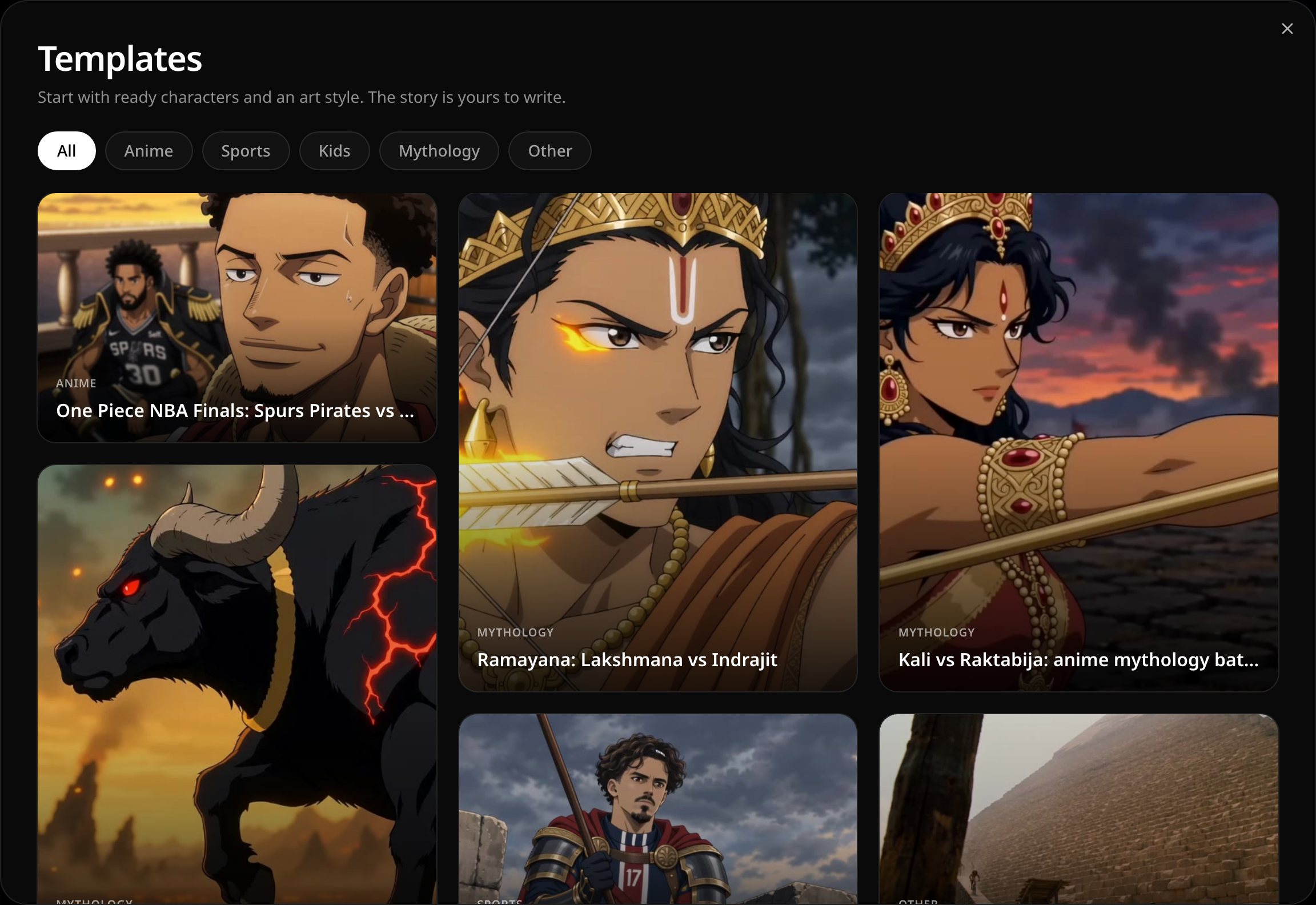
Templates
A template gives you a story's characters and art style up front. The story is yours to write.
- 1
Open Templates
Under the prompt box on the home page, choose Start from template.
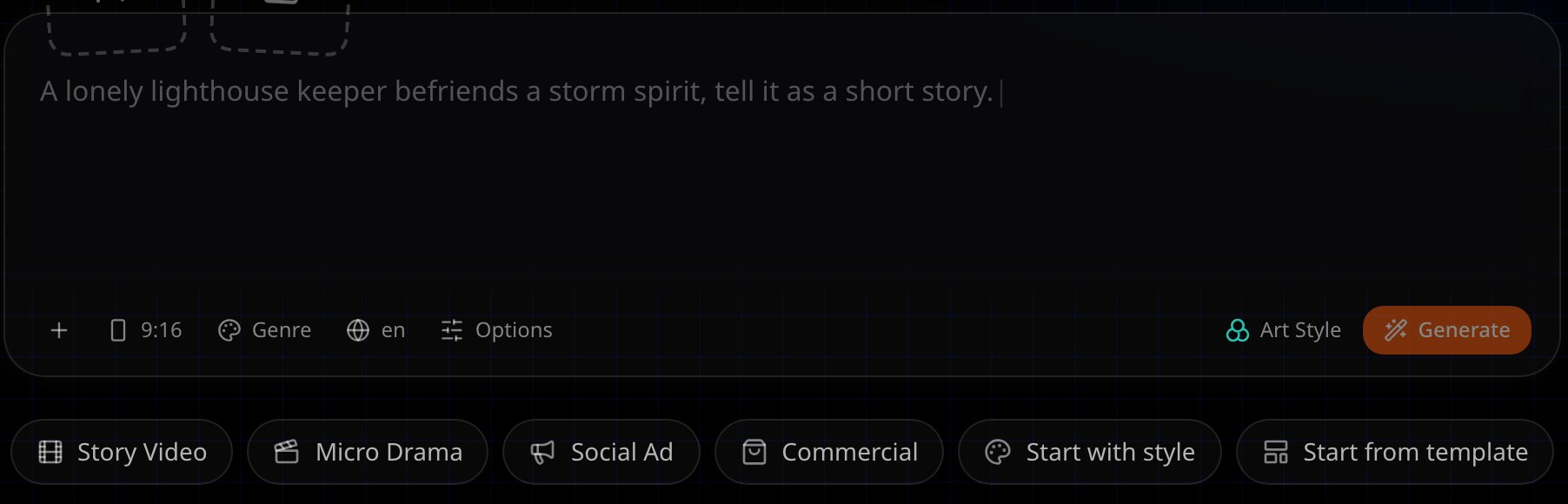
Start from template sits under the home prompt box. - 2
Pick a category
Filter the templates by category, such as Anime, Sports, Kids or Mythology, or keep All.
- 3
Look at a template
Hover over a template to see its art style and a short description.
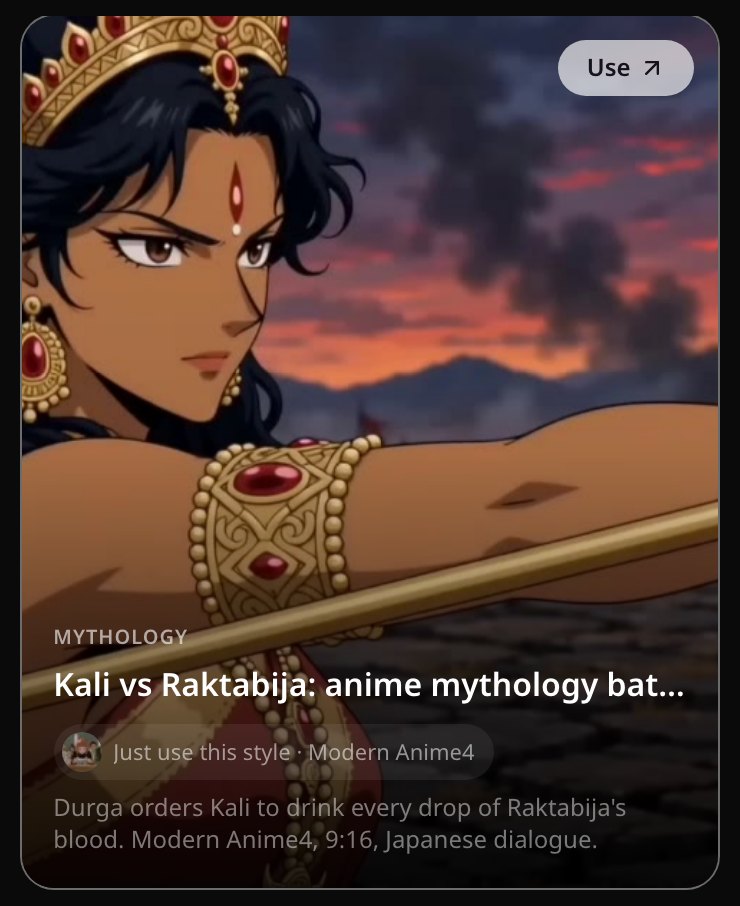
A hovered template, with Use and Just use this style. - 4
Use it
Choose Use to open a new story with those characters and that style, then write your own story. To take only the art style, choose Just use this style.
Presets
The Presets section on the home page holds ready video recipes, each with a reference video. You run them from Claude or ChatGPT with the Animeblip MCP.
- 1
Find a preset
Scroll to Presets on the home page. Narrow the list with the family chips, then the category chips.
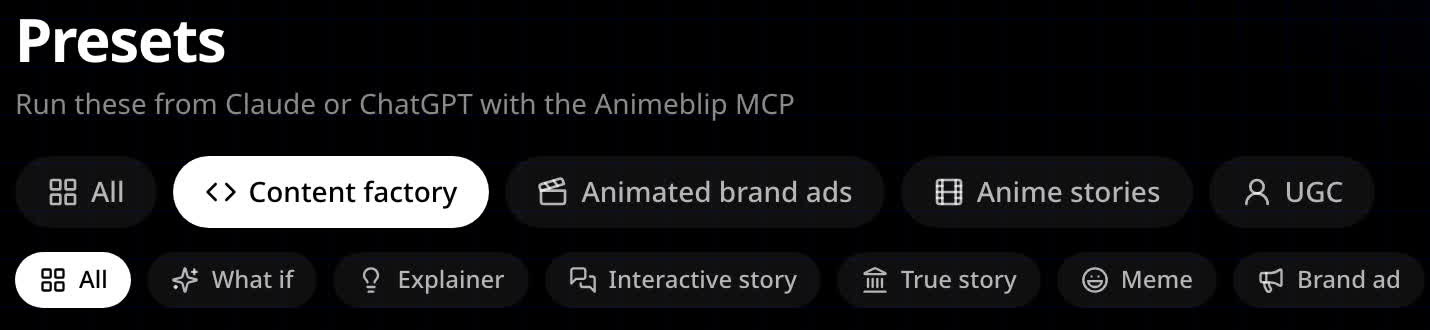
Presets on the studio home, with the Content factory family selected. - 2
Open it
Open a preset to watch its reference video and read its prompt. The link icon copies a link to that preset.
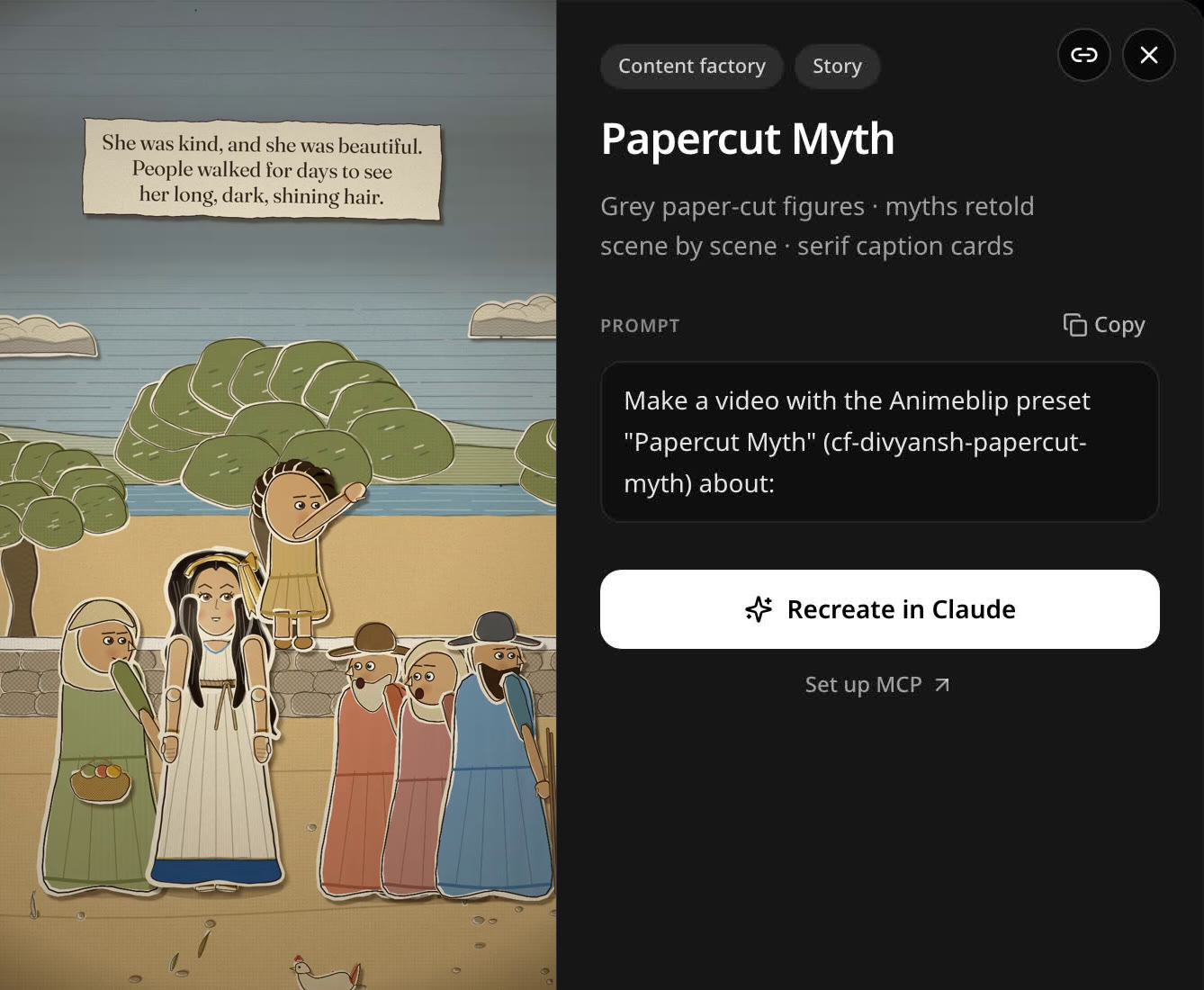
A preset: its reference video in that art style, the prompt, Recreate in Claude and Set up MCP. The link icon copies a link to it. - 3
Run it from your AI app
Choose Recreate in Claude to open a new Claude chat with the prompt typed in; the prompt is also copied. Not connected yet? Choose Set up MCP first.
Next
Was this page helpful?