Docs / Story & cast
Elements
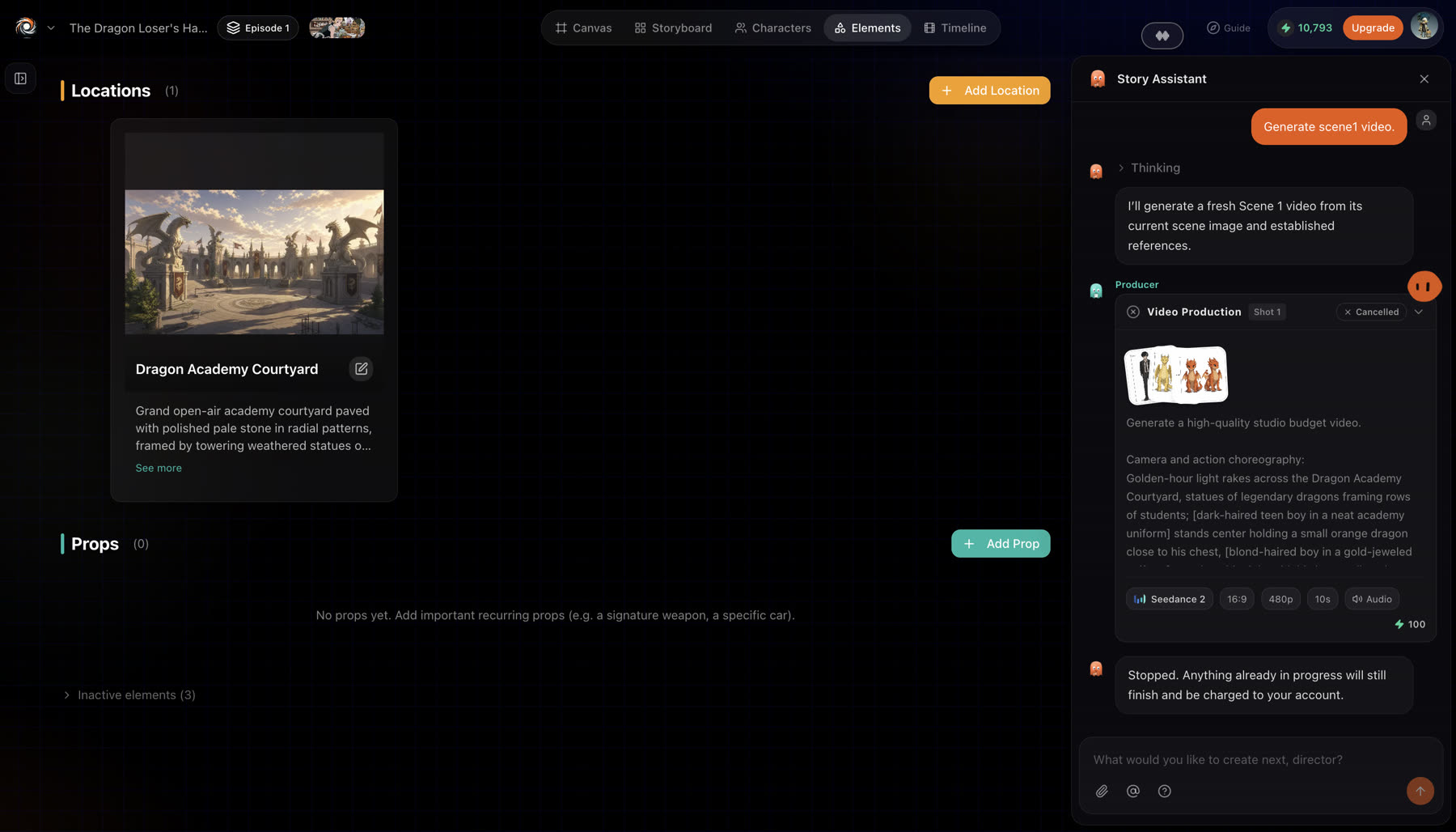
Elements are the locations and props of your story. Like characters, each one has a reference image the crew reuses, so a place looks the same in every shot.
Updated November 16, 2026
Before you start
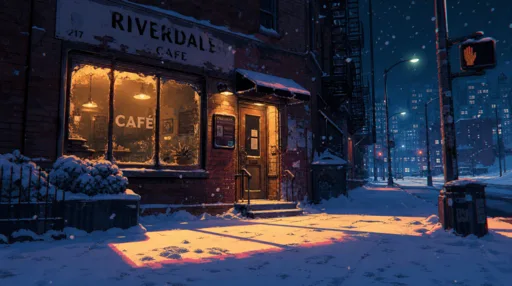
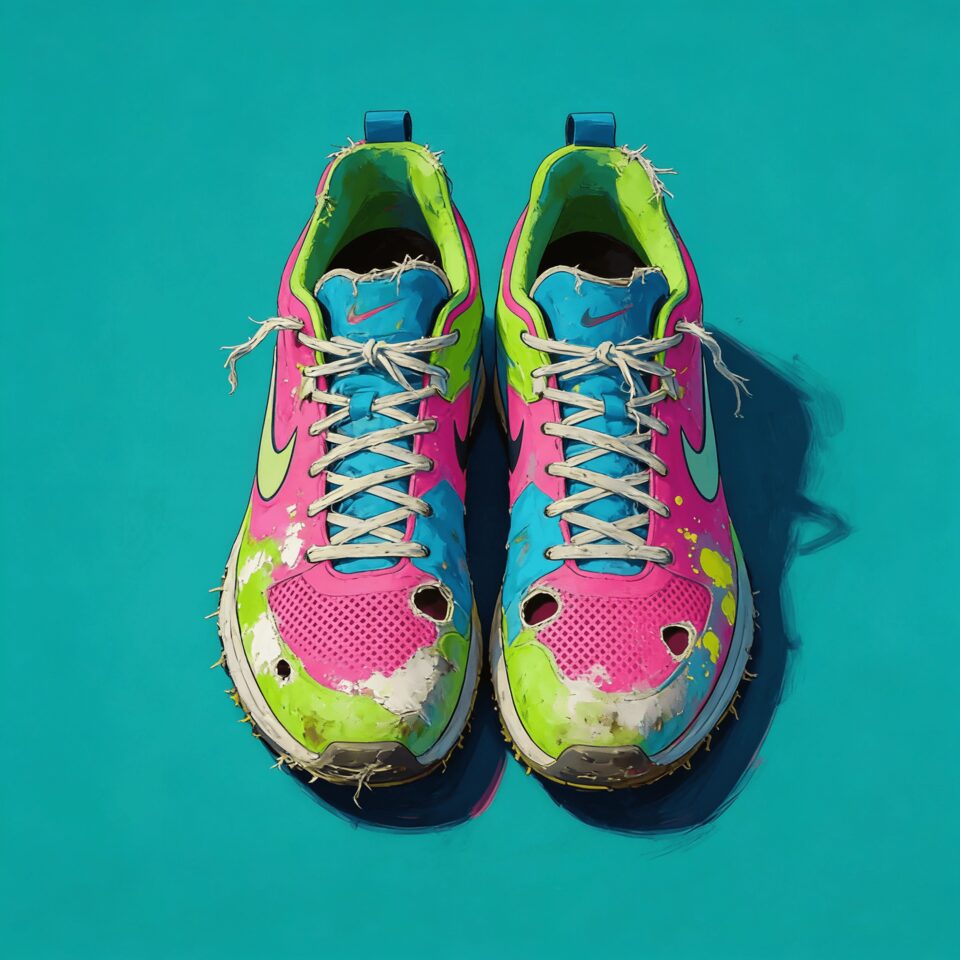
Add the places and objects that come back more than once: the main location, a signature weapon, a car, a logo on a wall. A thing that appears in one shot only can stay in that shot's prompt.
Add an element
- 1
Open the Elements tab
Open your story and switch to Elements. Choose Add Location or Add Prop.
- 2
Name it
Give it a name the crew and you will both recognise, such as "Dragon Academy Courtyard".
- 3
Describe it, or leave it empty
Add an optional description. Leave the description empty and the crew fills it in from the story.
- 4
Add a reference image
Upload a photo or artwork, or let the crew generate one in the story's style.
How it works
Locations and props work the same way: a name, an optional description, a reference image. Leave the description empty and the crew fills it in from the story. The Reference workflow builds shots directly from these references.
Best practices
Weak
A school.
Better
Dragon Academy Courtyard: a wide stone plaza at golden hour, tall dragon statues on both sides, banners on the walls, an old tree in the middle.
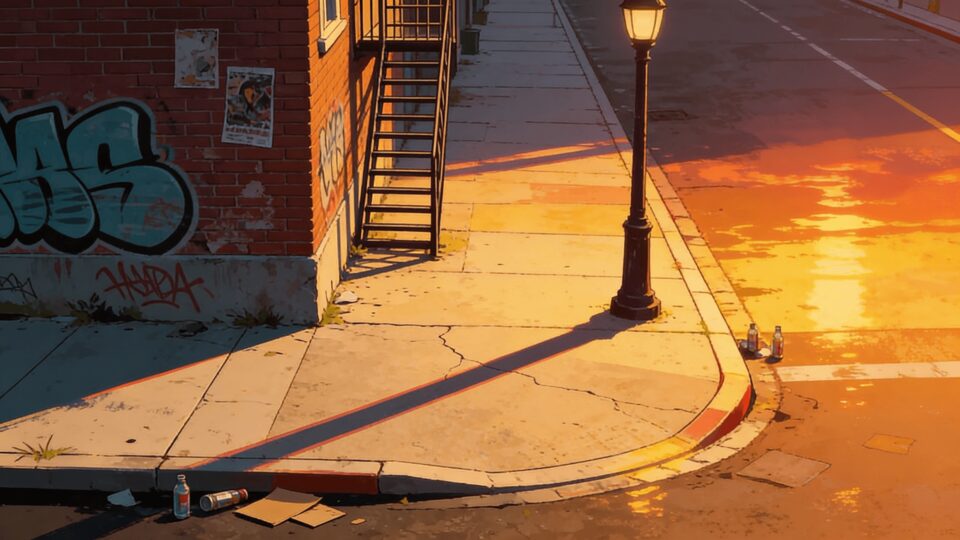
Size, materials, light and a few landmarks give every shot in that place the same layout.
- One element per place. Split "the academy" into the courtyard, the classroom and the dorm if the story moves between them.
- Name elements the way you will write prompts. Then you can reference them with @ in the prompt box.
If something looks wrong
- A location changes between shots. Make sure the shot references the element, then regenerate it.
- The generated description is off. Write your own description; it replaces the one the crew filled in.
Next
Was this page helpful?