Docs / Story & cast
Characters
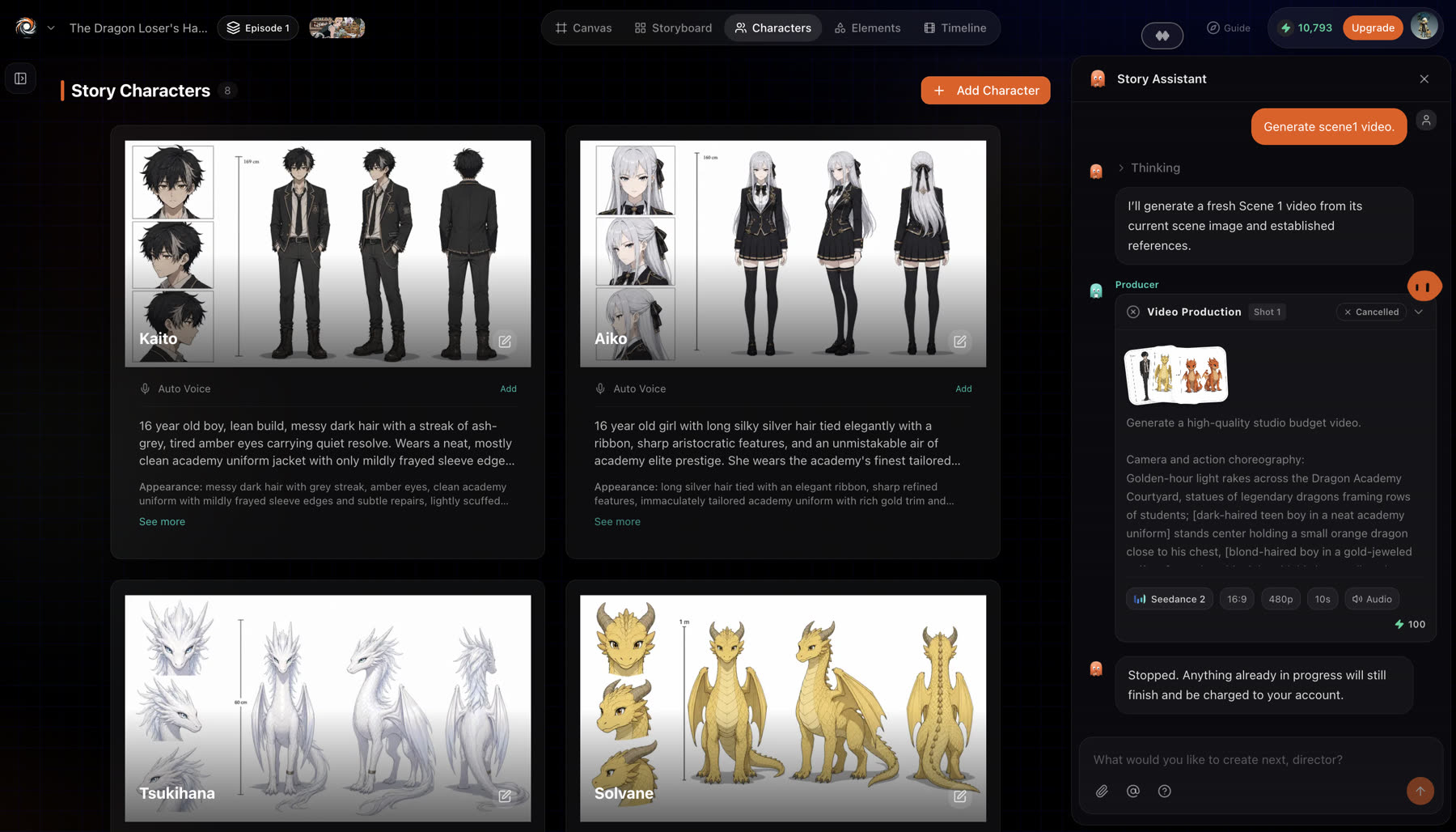
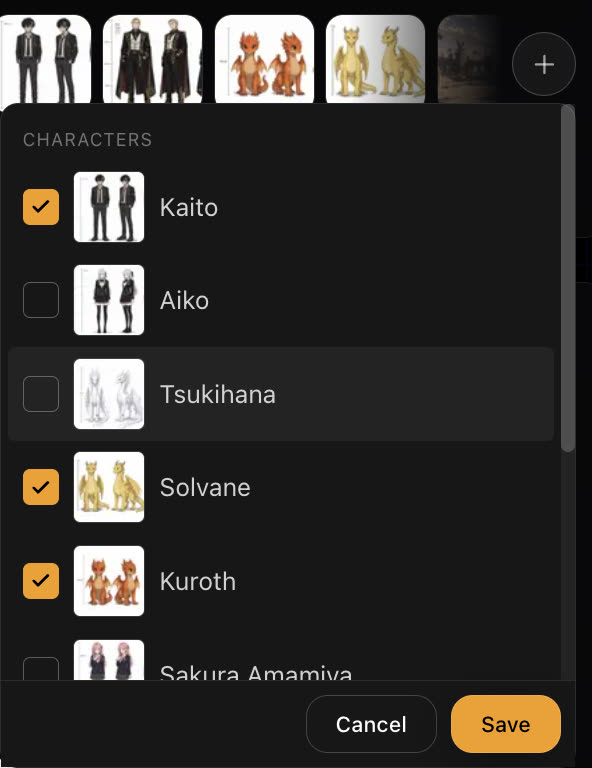
A character is an asset, not a prompt. Once a face, build and wardrobe are locked in a character sheet, every later shot references that sheet instead of describing the character again. That is why the same person appears in scene one and in the last scene of the series.
Updated November 16, 2026
Before you start
Pick the story's art style first, so generated character sheets come out in the look of the film. See Art styles. If you already have reference art for a character, keep it ready to upload.
Add a character
- 1
Open the Characters tab
Open your story and switch to Characters, then choose Add Character.
- 2
Name and describe them
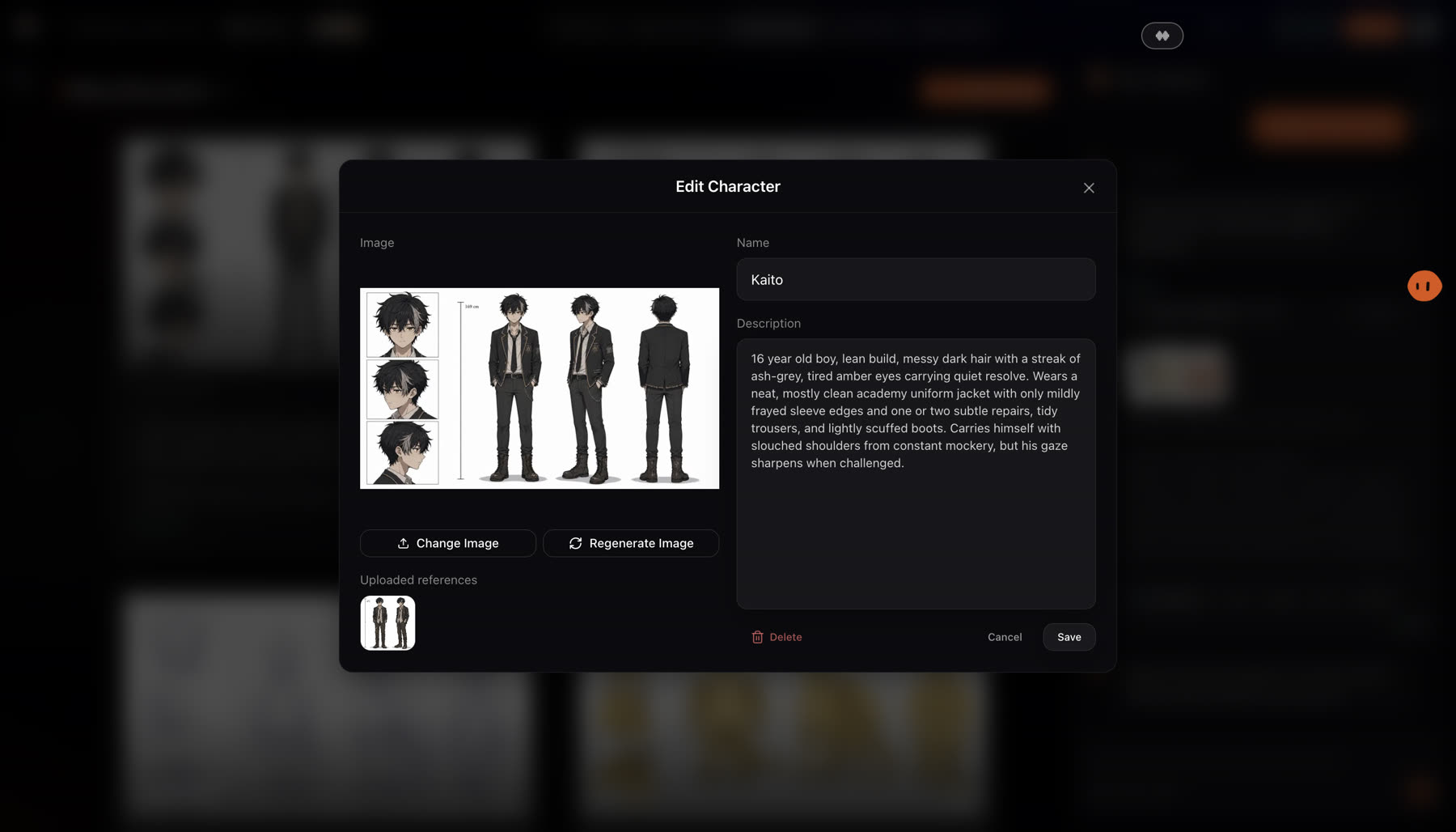
Give the character a name and a description: age, build, face, hair, clothes. The more specific, the closer the first sheet.
- 3
Add a reference image
Upload a reference image, or generate one in the story's style.
- 4
Give them a voice
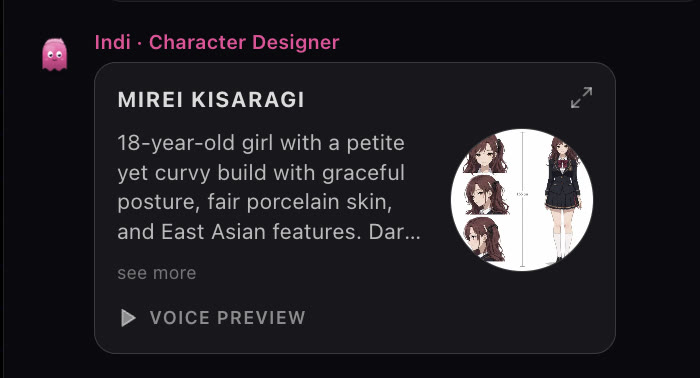
Pick a voice from the library, filtered by age and gender. The character keeps it across every scene. See Character voices.
How it works
Add a character with a name and a description, then upload a reference image or generate one in the story's style. The crew can also create the cast from the screenplay on its own. Each character gets a voice from the library, filtered by age and gender, or a cloned voice from a sample, and keeps it across every scene. Removing a character takes it out of the story without deleting its images.
When you write a prompt yourself, type @ to pick a character, so the shot uses the sheet instead of a description.
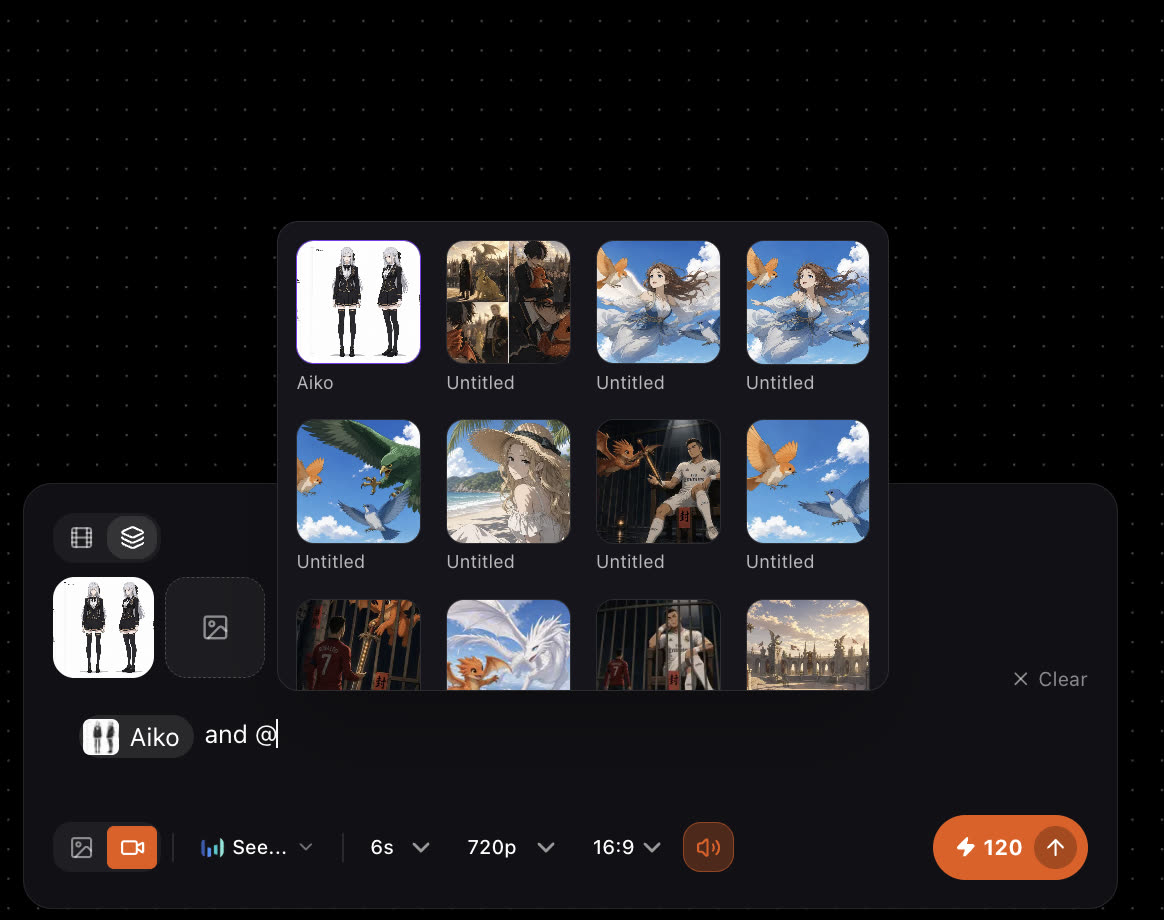
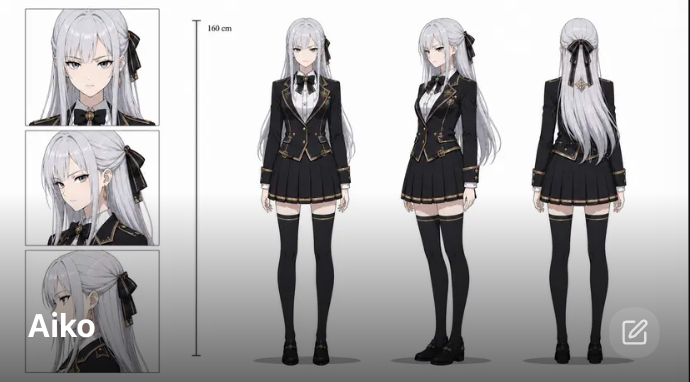
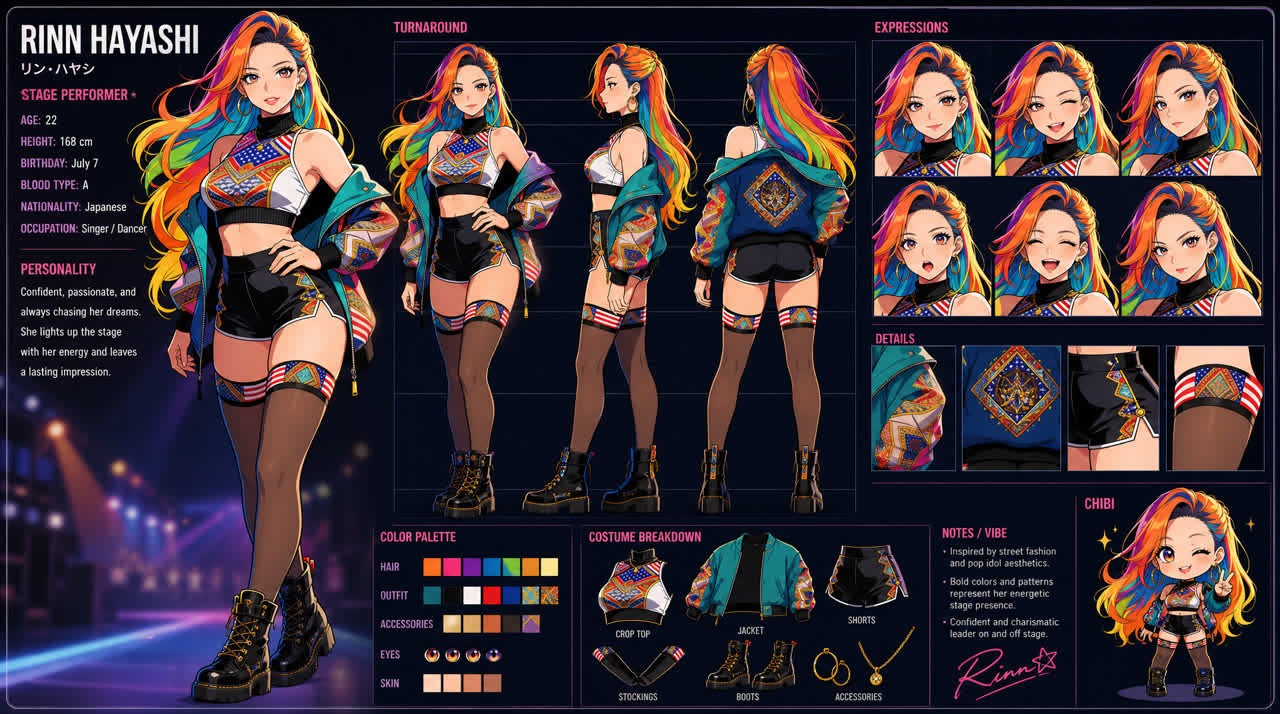
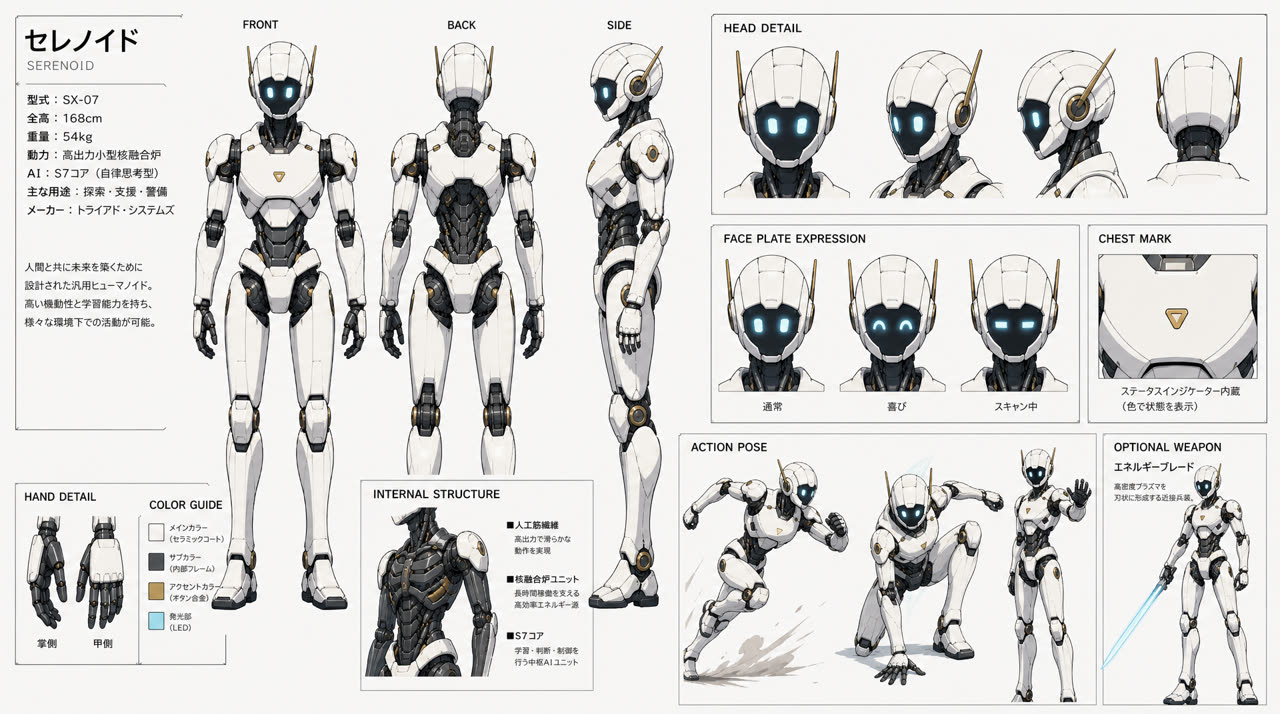
A character sheet shows the character from several sides, with expressions and notes. The crew reuses it in every shot, which is what keeps a face on-model from scene to scene.
Best practices
Weak
A cool anime boy.
Better
Kaito, 16, lean build, messy dark hair with a streak of red, sharp amber eyes. Black academy uniform with a silver crest, sleeves rolled up. Confident, a little reckless.
Specific age, build, hair, eyes and clothing give the character designer something to lock. Personality helps the crew pose and voice them.
- Approve the sheet before shooting. Every later shot reuses it, so a fix now saves regenerating scenes later.
- One outfit per sheet. If a character changes clothes in the story, describe the change in the scene instead of the sheet.
- Use your own art when you have it. An uploaded reference keeps the character on-model from the first shot.
Review the result
- The face, hair and clothes match your description.
- The front, side and back views show the same person.
- The voice fits the character's age and personality. Play the preview before you approve.
If something looks wrong
- The character looks different in one shot. Check the character is ticked for that scene and referenced in the prompt, then regenerate that shot.
- The sheet is close but not right. Edit the description and choose Regenerate image, or upload your own reference.
- You removed a character by mistake. Removing takes a character out of the story without deleting its images, so you can add it back.
Next
Was this page helpful?